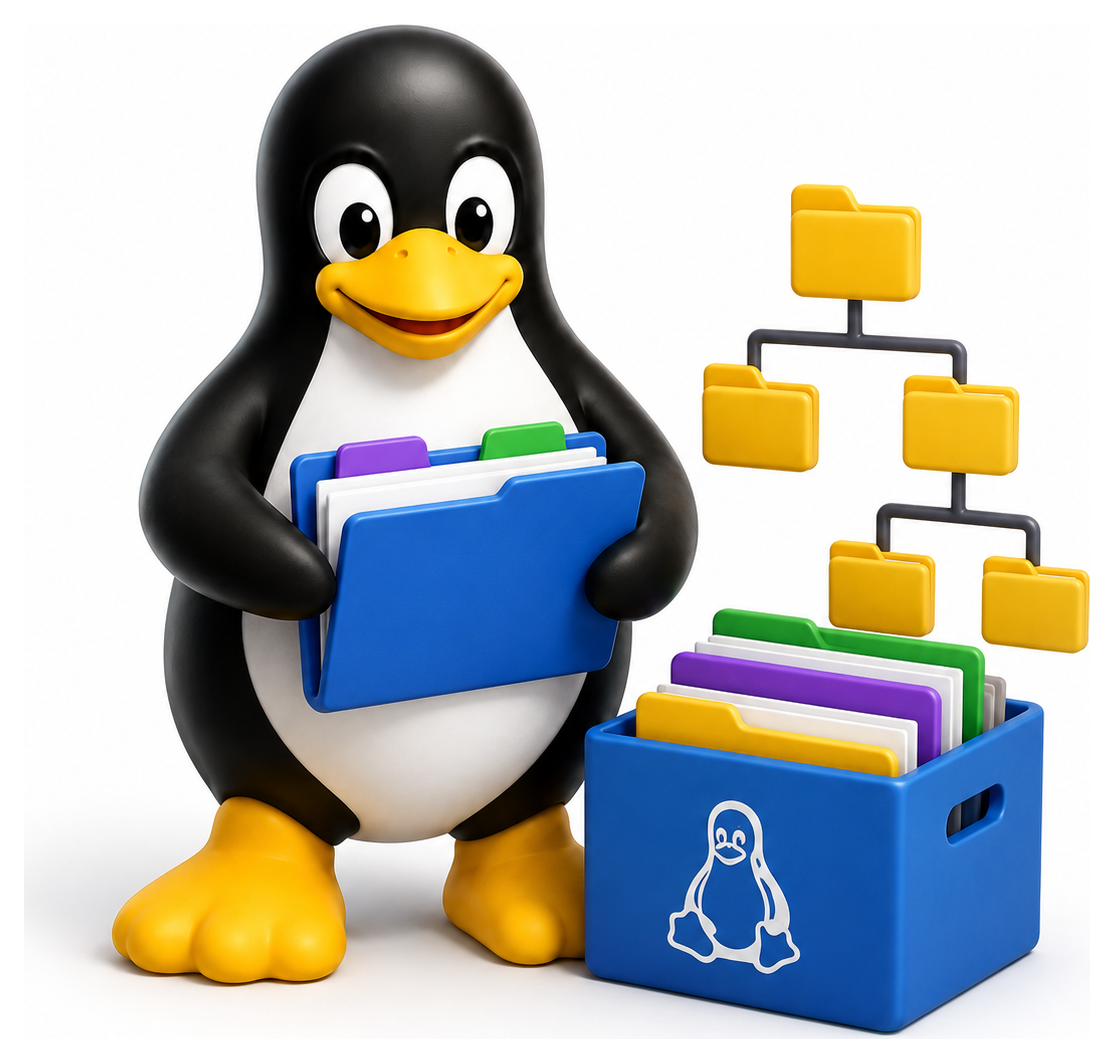
In Unix, everything is a file. Your keyboard is a file. Your screen is a file. Your running processes appear as files. Network sockets, block devices, shared memory segments: if you can read from it or write to it, there is a file somewhere that represents it. This was one of the original design decisions of Unix in 1970, and it remains one of its most elegant ideas. Once you understand what a "file" really means to Linux, the whole system starts to feel coherent.
- Explain the Unix principle that everything is a file and identify the different file types
- Distinguish between absolute and relative paths and use shortcuts effectively
- Create, copy, move, delete, and link files and directories confidently
- Inspect file metadata with stat, file, and ls
- Recognise hidden files and the significance of the dot-file convention
Everything Is a File
When Ken Thompson and Dennis Ritchie designed Unix, they made a radical choice: rather than have separate APIs for reading from disk, reading from a keyboard, and reading from a serial line, they made all of these look like files. You open them with open, read from them with read, close them with close. The underlying kernel then dispatches each call to whichever driver actually implements that particular file's behaviour.
The upshot is that a program written to process a file can, without modification, also process keyboard input, network data, or the output of another program. It is this uniformity that makes Unix pipelines and redirection so powerful.
The Seven File Types
Linux recognises seven distinct kinds of file. You can see the type by looking at the first character of the output of ls -l:
ls -l /
# drwxr-xr-x  2 root root   4096 Apr  9 09:00 bin
# lrwxrwxrwx  1 root root      7 Apr  9 09:00 lib -> usr/lib
# -rw-r--r--  1 root root   2048 Apr  9 09:00 somefile
The first character tells you what kind of file each entry is. The d means directory, the l means symlink, and so on.
Regular Files
The most common kind. A regular file is just a stream of bytes. Linux does not impose any structure: no concept of "text file" versus "binary file" at the filesystem level. A file is whatever its contents happen to be, and conventions (like file extensions) are purely advisory.
Directories
A directory is a special file whose contents are a list of (name, inode) pairs, mapping names to the actual file data. When you run ls, the kernel reads the directory file and hands you the list of names it contains. A directory does not contain files in any physical sense; it contains references to them.
Symbolic Links
A symbolic link (or symlink) is a file whose contents are the path to another file. When any program tries to open the symlink, the kernel silently follows it to the target. Symlinks are the Unix equivalent of Windows shortcuts, except they work everywhere, for everything, transparently.
ln -s /etc/ssh/ssh_config sshconfig
ls -l sshconfig
# lrwxrwxrwx 1 chris chris 19 Apr  9 10:00 sshconfig -> /etc/ssh/ssh_config
cat sshconfig        # reads /etc/ssh/ssh_config
There is a subtler kind called a hard link that creates a second name for the same file data, rather than a pointer. Hard links cannot cross filesystem boundaries and cannot link to directories, which makes them less flexible but more efficient.
Device Files
/dev/sda is the first SATA disk; /dev/tty is the controlling terminal of the current process; /dev/null is the famous bit bucket that silently discards anything written to it. These device files are how user programs communicate with drivers in the kernel.
FIFOs and Sockets
A named pipe or FIFO is a file that acts as a one-way channel between processes. Whatever you write to one end comes out of the other. Sockets are similar but bidirectional and usually used for more complex protocols. Both are visible in the filesystem but are really IPC mechanisms, not storage.
Table 6.1: The seven Unix file types
| Symbol | Type | Example |
|---|---|---|
| - | Regular file | /etc/passwd, photo.jpg |
| d | Directory | /home, /etc |
| l | Symbolic link | /bin → /usr/bin |
| c | Character device | /dev/tty, /dev/null |
| b | Block device | /dev/sda, /dev/nvme0n1 |
| p | Named pipe (FIFO) | mkfifo pipe |
| s | Socket | /var/run/docker.sock |
Paths: Absolute and Relative
A path is a string that identifies a file in the filesystem tree. Paths come in two flavours.
An absolute path starts with / and gives the full route from the root of the filesystem to the file:
/home/chris/projects/tblinux/chapter.md
A relative path does not start with / and is interpreted relative to the current working directory. If your current directory is /home/chris/projects, then:
tblinux/chapter.md
refers to the same file. Use pwd to see your current directory:
pwd
# /home/chris/projects
Two special names appear in every directory:
.(a single dot) refers to the current directory itself...(two dots) refers to the parent directory.
So ../other means "the other directory next to this one". And:
./myscript.sh
runs a script in the current directory (the ./ is needed because the current directory is not normally in PATH, for security reasons).
A tilde ~ at the start of a path refers to your home directory: ~/Documents is /home/chris/Documents. The shell expands ~ before passing the path to the program.
Table 6.2: Path shortcuts
| Symbol | Meaning |
|---|---|
| / | Root of the filesystem |
| . | Current directory |
| .. | Parent directory |
| ~ | Current user's home directory |
| ~alice | User alice's home directory |
| - | Previous working directory (cd only) |
Listing Files
The ls command is the workhorse of navigation:
ls              # names only, tightly packed
ls -l           # long format with metadata
ls -a           # include hidden files (those starting with .)
ls -la          # both
ls -lh          # human-readable sizes (K, M, G)
ls -lt          # sort by modification time, newest first
ls -lS          # sort by size, largest first
ls -R           # recurse into subdirectories
The long format deserves a closer look:
-rw-r--r-- 1 chris chris 2048 Apr 9 10:00 chapter.md
From left to right: file type and permissions, number of hard links, owner, group, size in bytes, modification time, and name.
Table 6.3: Common ls flags
| Flag | Meaning |
|---|---|
| -l | Long format (permissions, size, owner, mtime) |
| -a | Show hidden files (those starting with .) |
| -A | Like -a but omit . and .. |
| -h | Human-readable sizes (with -l) |
| -S | Sort by size (largest first) |
| -t | Sort by mtime (newest first) |
| -r | Reverse sort order |
| -R | Recurse into subdirectories |
| -i | Show inode numbers |
| -d | List directories themselves, not their contents |
| -F | Append indicator (*/=>@|) to show type |
| --color=auto | Colourise output |
Hidden Files
Files whose names start with a dot (.bashrc, .vimrc, .git) are hidden by convention: ls does not show them unless you pass -a. This convention came about by accident. A Bell Labs programmer writing ls decided to skip . and .. entries, and the quickest way was to skip anything starting with a dot. The side effect turned into a feature: configuration files could be hidden from normal listings just by prefixing them with a dot.
Today, ~/.bashrc, ~/.config/, and ~/.ssh/ are standard locations for user configuration. The XDG Base Directory Specification encourages putting per-user config in ~/.config/, data in ~/.local/share/, and caches in ~/.cache/, but many applications still scatter dotfiles throughout $HOME.
Creating and Removing
mkdir myproject            # create a directory
mkdir -p a/b/c/d           # create parent dirs as needed
touch notes.txt            # create an empty file (or update timestamp)
rm notes.txt               # delete a file
rm -r myproject            # recursively delete a directory
rm -rf myproject           # force, no prompts (dangerous)
rmdir emptydir             # only works on empty directories
A word of warning: rm -rf is one of the most dangerous commands on any Unix system. There is no undo and no trash folder. Files deleted with rm are gone. The mythical command rm -rf / would erase the entire filesystem if run as root, and while modern rm refuses that exact command by default, variants like rm -rf /home/chris/* (an unfortunate typo of rm -rf /home/chris-old/*) have ended many careers. Always pause before typing rm -rf.
Table 6.4: Core file and directory commands
| Command | Purpose |
|---|---|
| touch file | Create empty file or update mtime |
| mkdir dir | Create a directory (-p for parents) |
| rm file | Remove a file (-r recursive, -f force) |
| rmdir dir | Remove an empty directory |
| cp src dst | Copy a file (-r recursive, -a archive) |
| mv old new | Move or rename |
| ln target link | Create a hard link |
| ln -s target link | Create a symbolic link |
| stat file | Show all metadata |
| file file | Identify content type by sniffing |
Copying and Moving
cp source.txt dest.txt        # copy a file
cp file1 file2 dir/           # copy multiple files into a directory
cp -r srcdir/ destdir/        # recursively copy a directory
cp -a srcdir/ destdir/        # archive mode: preserve permissions, timestamps, links

mv oldname newname            # rename
mv file dir/                  # move into a directory
mv dir newdir                 # rename a directory
mv on the same filesystem is near-instant because it just rewrites directory entries. Across filesystems it becomes a copy-then-delete.
Links
ln target linkname            # hard link
ln -s target linkname         # symbolic link
Symlinks are the kind you will use ninety-nine per cent of the time. Inspect them with ls -l, follow them with readlink:
readlink -f sshconfig
# /etc/ssh/ssh_config
File Metadata
The file command inspects the contents of a file and tells you what it thinks it is:
file /bin/ls
# /bin/ls: ELF 64-bit LSB pie executable, x86-64, dynamically linked
file chapter.md
# chapter.md: Unicode text, UTF-8 text
file photo.jpg
# photo.jpg: JPEG image data, JFIF standard 1.01
The stat command shows detailed filesystem metadata:
stat chapter.md
#   File: chapter.md
#   Size: 4096        Blocks: 8          IO Block: 4096   regular file
# Device: 803h/2051d  Inode: 1234567    Links: 1
# Access: (0644/-rw-r--r--)  Uid: (1000/chris)   Gid: (1000/chris)
# Access: 2026-04-09 09:58:12.123456789 +0100
# Modify: 2026-04-09 10:00:01.234567890 +0100
# Change: 2026-04-09 10:00:01.234567890 +0100
#  Birth: 2026-04-08 14:32:00.000000000 +0100
The four timestamps tell you different things. Access is the last time the file was read; Modify is the last time its contents changed; Change is the last time its metadata (like permissions) changed; Birth is creation time. The inode number is a unique ID for this file on this filesystem.
Table 6.5: Permission bits explained
| Character | Position | Meaning |
|---|---|---|
| d / - / l / ... | 1 | File type |
| r | 2, 5, 8 | Read |
| w | 3, 6, 9 | Write |
| x | 4, 7, 10 | Execute (or traverse, for dirs) |
| s | 4 or 7 | setuid / setgid (replaces x) |
| t | 10 | Sticky bit (replaces x on directories) |
Wildcards and Globbing
The shell expands wildcards before passing arguments to commands:
ls *.md                   # all markdown files
ls chapter-?.md           # chapter-1.md, chapter-2.md, etc (single digit)
ls chapter-[12]*.md       # chapters starting with 1 or 2
cp *.jpg backup/          # copy all JPEGs
Critically, wildcard expansion happens in the shell, not in ls. ls itself never sees the *; by the time it is called, the shell has already replaced it with the matching filenames.
Table 6.6: Shell globbing patterns
| Pattern | Matches |
|---|---|
| * | Any string (not including /) |
| ? | Exactly one character |
| [abc] | One of a, b, or c |
| [a-z] | One character in range |
| [!abc] | Any character NOT in set |
| {one,two,three} | Brace expansion (bash-specific) |
| ** | Recursive match (with shopt -s globstar) |
Putting It Together
Navigating the filesystem is the bread and butter of daily Linux use. A typical session might look like:
cd ~/projects
mkdir -p myapp/src
cd myapp
touch src/main.py
ls -la
mv src/main.py src/app.py
stat src/app.py
These are the fundamental verbs of working with files. The rest of the book will build on them constantly, so if any of this feels unfamiliar, open a terminal and practice until it becomes automatic.
