
For most people, the shell is Linux. Whether you administer a fleet of servers over SSH or just poke around your laptop terminal, almost every intentional interaction you have with a Linux system goes through this thin, text-based layer. The shell is where all the commands you will learn in this book actually live, and it is simultaneously a user interface, a programming language, and a workflow tool. It rewards practice like no other piece of software on your machine.
- Define what a shell is and how it differs from a terminal emulator and a console
- Compare the major Unix shells and their historical relationships
- Read and write commands with arguments, options, and environment variables
- Use history, autocompletion, and prompt customisation to work efficiently
- Manage environment variables and understand shell startup files
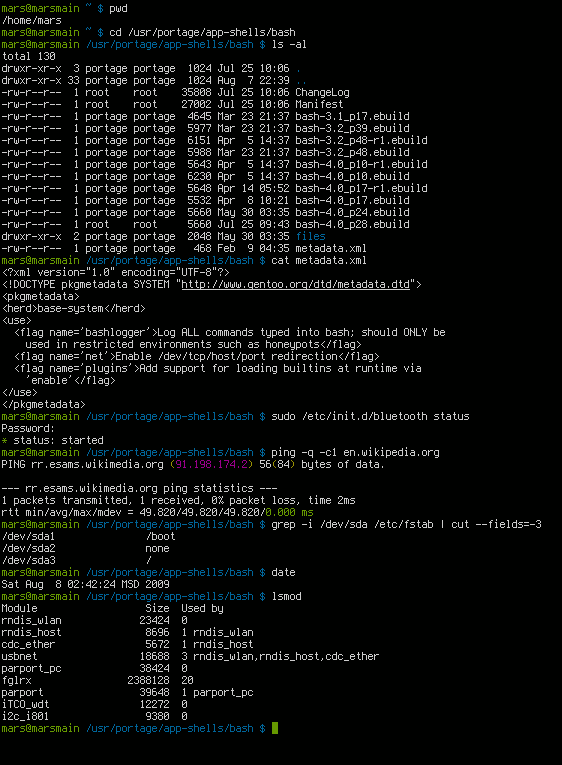
What a Shell Is
A shell is a program that reads commands from the user, figures out what those commands mean, and runs them. It is called a shell because it wraps around the kernel, providing a layer between you and the raw system calls underneath. The shell is itself just an ordinary program; you can start it, stop it, replace it, or write your own. There is nothing magical about it, which is why Linux has so many of them.
When you type ls -la, the shell does several things in rapid succession:
- Reads the characters you type, letting you edit the line with the arrow keys, backspace, and so on.
- When you press Enter, parses the line into words (
lsand-la). - Expands anything that needs expanding: wildcards, variables, command substitutions.
- Searches for a program called
lsalong thePATH. - Forks a new process and execs the
lsbinary in it, passing-laas an argument. - Waits for that process to finish, then prints the prompt again, ready for the next command.
Each of these steps is a useful mental hook that we will come back to.
Terminal, Console, and Shell
The words terminal, console, and shell are often used interchangeably and it causes no end of confusion. They are three different things.
A console historically meant the physical text-mode display attached directly to a computer: a dedicated screen and keyboard used to administer the machine. On Linux you can still access it by pressing Ctrl+Alt+F2 through F6 on a typical desktop, which drops you out of the graphical environment and into a text-mode login. These are called virtual consoles.
A terminal was originally a piece of hardware: a keyboard and CRT display wired to a mainframe over a serial line. The famous VT100 from Digital Equipment in 1978 was the most influential. Today, the hardware is long gone, but terminal emulators are software programs that pretend to be a VT100 in a window on your graphical desktop. GNOME Terminal, Konsole, iTerm2, Alacritty, and Kitty are all terminal emulators. They draw a grid of characters, handle keyboard input, and implement the escape sequences that VT100-style terminals understood.
A shell is the program running inside the terminal (or on the console, or at the other end of an SSH connection) that reads commands and runs them. Your terminal emulator and your shell are separate pieces of software, communicating through a pseudo-terminal device (/dev/pts/N).
Understanding this stack matters because it tells you where a problem lives. Line-wrapping bugs belong to the terminal; command-not-found errors belong to the shell.
A Zoo of Shells
Unix has accumulated many shells over the decades, and knowing the lineage helps you understand why they behave the way they do.
Most scripts you encounter are written for sh or bash, because those are near-universal. Interactive use, however, is increasingly a matter of taste. Many developers prefer zsh with frameworks like Oh My Zsh, and the young fish shell has attracted a devoted following for its sensible defaults and autosuggestions.
bash remains the safe bet. It is the default interactive shell on most Linux distributions, it is POSIX-compatible (meaning it runs sh scripts correctly), and virtually all tutorials assume it. This book will use bash throughout.
Table 5.1: Popular Linux shells compared
| Shell | Binary | Notes |
|---|---|---|
| Bourne sh | /bin/sh | The original Unix shell; POSIX target |
| Bash | /bin/bash | GNU Bourne-Again shell; Linux default |
| Zsh | /bin/zsh | Feature-rich, macOS default; great completion |
| Fish | /usr/bin/fish | User-friendly; not POSIX-compatible |
| Dash | /bin/dash | Small, fast, POSIX; Ubuntu /bin/sh |
| Ksh | /bin/ksh | Korn shell; common on commercial Unix |
| Tcsh | /bin/tcsh | C-like syntax; legacy on BSD |
Command Structure
A basic shell command looks like this:
command [options] [arguments]
For example:
ls -l -h /etc
Here ls is the command, -l and -h are options (often called flags), and /etc is the argument. Short options usually consist of a single dash followed by a single letter, and they can be combined: ls -lh means the same as ls -l -h. Long options use a double dash and full words: ls --all --human-readable.
Some options take values of their own:
grep --color=auto "error" /var/log/syslog
grep -C 3 "error" /var/log/syslog    # three lines of context
Arguments are whatever the command operates on: files, directories, hostnames, whatever the command expects. Many commands accept multiple arguments:
cp file1 file2 file3 destination/
Reading a command's manual page with man is the single most important habit you can form:
man ls
Where Commands Come From
When you type ls, how does the shell find the ls program? It looks in each directory listed in the PATH environment variable, in order, until it finds an executable file with that name.
echo $PATH
# /usr/local/sbin:/usr/local/bin:/usr/sbin:/usr/bin:/sbin:/bin:/home/chris/bin
which ls
# /usr/bin/ls
type ls
# ls is aliased to `ls --color=auto'
Note the subtlety with type: not every "command" is a program on disk. Some are shell builtins (like cd, which has to be a builtin because it changes the shell's own current directory), and some are aliases or shell functions you have defined.
Table 5.2: How Bash resolves a command
| Order | Kind | Check With |
|---|---|---|
| 1 | Alias | alias |
| 2 | Function | declare -f |
| 3 | Builtin | help |
| 4 | Executable in $PATH | which / type |
| (cache) | Hashed cache of recent lookups | hash |
Environment Variables
An environment variable is a named value that every process inherits from its parent. PATH is one; there are many others.
echo $HOME
# /home/chris
echo $USER
# chris
echo $SHELL
# /bin/bash
echo $PWD
# /home/chris/projects
env | head
# (lists all exported environment variables)
You can set your own:
NAME="Alice"
echo "Hello, $NAME"
# Hello, Alice
By default, a variable set this way is local to the current shell. To make it available to programs the shell launches, you must export it:
export EDITOR=vim
Now any program you run from this shell, including ones that start sub-shells, will see EDITOR=vim.
Table 5.3: Common environment variables
| Variable | Purpose |
|---|---|
| PATH | Colon-separated list of directories to search for commands |
| HOME | Current user's home directory |
| USER / LOGNAME | Current username |
| SHELL | User's login shell |
| PWD | Current working directory |
| OLDPWD | Previous working directory ($OLDPWD = cd -) |
| EDITOR / VISUAL | Preferred text editor |
| LANG / LC_* | Locale and language settings |
| TERM | Terminal type for termcap/terminfo |
| PS1 / PS2 | Primary and secondary prompt strings |
| HISTFILE / HISTSIZE | Where and how much command history to keep |
History
Every interactive command you run is saved to a history file, usually ~/.bash_history. Press the up arrow to recall previous commands. Ctrl+R starts a reverse search:
(reverse-i-search)`ssh': ssh user@example.com
Start typing, and the shell jumps to the most recent matching command. Ctrl+R again cycles through older matches.
You can also refer to history by number:
history | tail
# 1001  ls
# 1002  cd /etc
# 1003  cat os-release
!1002          # re-run command 1002
!!             # re-run the last command
sudo !!        # re-run the last command as root (a classic)
Table 5.4: Essential Bash keyboard shortcuts
| Shortcut | Action |
|---|---|
| Ctrl-A / Ctrl-E | Move to start / end of line |
| Ctrl-B / Ctrl-F | Move back / forward one character |
| Alt-B / Alt-F | Move back / forward one word |
| Ctrl-U / Ctrl-K | Delete to start / end of line |
| Ctrl-W | Delete previous word |
| Ctrl-Y | Paste last killed text |
| Ctrl-L | Clear screen |
| Ctrl-R | Reverse-search history |
| Ctrl-C | Abort current command |
| Ctrl-D | EOF / logout if line is empty |
| Ctrl-Z | Suspend current process (fg to resume) |
| !! | Repeat last command |
| !$ / !* | Last argument / all arguments of last command |
Tab Completion
Press Tab to autocomplete commands, file names, options, and sometimes even arguments. This is not a gimmick; it is one of the defining productivity features of the modern shell.
ls /us<Tab>    # completes to /usr/
cd ~/Doc<Tab>  # completes to ~/Documents/
git che<Tab>   # completes to git checkout
Most distributions ship with a bash-completion package that adds intelligent completion for hundreds of commands: git, systemctl, kubectl, docker, and so on. If yours does not have it, install it and thank me later.
The Prompt
The text that appears before the cursor is the prompt, controlled by the PS1 environment variable. A default might look like:
chris@laptop:~/projects$
The dollar sign at the end indicates an ordinary user; a hash # indicates root. You can customise PS1 with special escape sequences:
| Escape | Meaning |
|---|---|
\u |
Username |
\h |
Short hostname |
\w |
Current working directory |
\$ |
# if root, $ otherwise |
\t |
Current time |
\n |
Newline |
A popular minimalist prompt:
export PS1='\u@\h:\w\$ '
Git-aware prompts that show the current branch are nearly universal among developers. Tools like Starship provide a cross-shell, blazingly fast prompt out of the box.
Startup Files
When bash starts, it reads a sequence of configuration files. The exact order depends on whether it is a login shell (such as when you log in over SSH) or a non-login interactive shell (such as when you open a new terminal window), and whether it is interactive at all. The practical version is:
~/.bash_profileor~/.profile: run for login shells. Put login-time setup here: PATH additions, environment variables, and so on.~/.bashrc: run for interactive non-login shells. Put aliases, functions, and prompt customisation here./etc/profileand/etc/bash.bashrc: system-wide equivalents that apply to all users.
A common pattern is to have ~/.bash_profile source ~/.bashrc so you get the same environment in both cases:
# ~/.bash_profile
[ -f ~/.bashrc ] && source ~/.bashrc
Edit your ~/.bashrc to add a few useful aliases:
alias ll='ls -lh'
alias la='ls -lAh'
alias grep='grep --color=auto'
alias ..='cd ..'
Save the file, then either open a new terminal or run source ~/.bashrc to apply the changes.
Table 5.5: Which startup files Bash reads
| File | When Read |
|---|---|
| /etc/profile | Login shells, system-wide |
| ~/.bash_profile | Login shells, user (only first found of these three) |
| ~/.bash_login | Login shells, user (if .bash_profile missing) |
| ~/.profile | Login shells, user (if both above missing) |
| ~/.bashrc | Interactive non-login shells |
| /etc/bash.bashrc | Interactive non-login shells, system-wide |
| ~/.bash_logout | When a login shell exits |
The Shell as a Programming Language
Everything discussed so far is the interactive face of the shell, but it is also a real programming language with variables, loops, conditionals, and functions. We will spend an entire chapter (Chapter 14) on shell scripting. For now, it is enough to know that the language you type interactively at the prompt is the same language you can put in a file and run as a script. That coherence is one of the shell's quiet masterstrokes: the line between "using the computer" and "programming the computer" is blurred almost to nothing.
