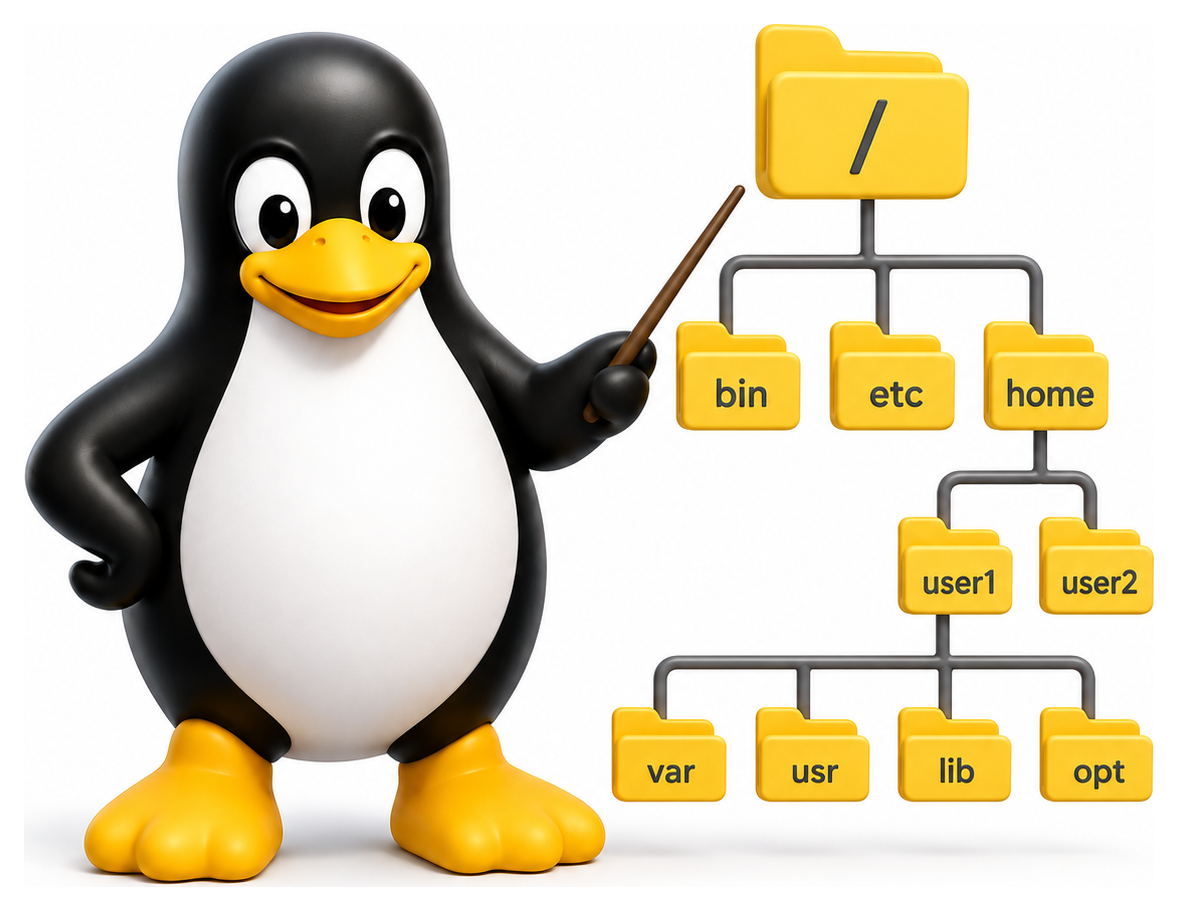
One of the first things a newcomer to Linux notices is the sprawling tree of directories under /, with cryptic names like /usr, /opt, /var, and /proc. Most of these names are historical, inherited from the earliest days of Unix, and the reasons behind them are not always obvious. But the layout is not arbitrary. It follows a document called the Filesystem Hierarchy Standard (FHS), and understanding it transforms Linux from a maze into a map.
- Describe the purpose of each top-level directory defined by the Filesystem Hierarchy Standard
- Distinguish between directories that hold programs, configuration, data, and runtime state
- Explain why /proc, /sys, /dev, and /run are pseudo-filesystems rather than on-disk storage
- Locate common files and commands in their expected directories
- Apply FHS conventions when installing and configuring software
Why There Is a Standard
In the 1990s, every Unix vendor had its own opinions about where things should live. Sun Solaris put system binaries in one place, HP-UX in another, IBM AIX in a third; Red Hat and Debian disagreed with each other and with everybody else. This made writing portable software a nightmare. In 1994, a group of Linux developers started working on a standard, and in 1997 the first version of the FHS was published. Today all mainstream distributions follow it with only minor deviations.
The FHS provides two kinds of guidance. First, it defines the purpose of each top-level directory: what goes where. Second, it encodes principles about how directories should be organised: static versus variable data, shareable versus host-specific data, things the system needs to boot versus things that can be mounted later.
The Root Directory
Everything on a Linux system starts at /, the root directory. Unlike Windows, which has multiple drive roots (C:\, D:\), Linux has exactly one root. Additional disks are mounted inside the existing tree, at directories like /mnt/backup or /media/usb.
ls /
# bin  boot  dev  etc  home  lib  lib64  media  mnt  opt
# proc root  run  sbin srv  sys  tmp    usr    var
Let us walk through each of these in turn.
Table 4.1: Top-level directories in the Filesystem Hierarchy Standard
| Directory | Purpose | Typical Contents |
|---|---|---|
| / | Root of everything | All other directories |
| /bin | Essential user binaries | ls, cp, mv, cat, bash |
| /sbin | Essential system binaries | fsck, mount, init |
| /etc | System configuration | passwd, fstab, hostname |
| /home | User home directories | /home/alice, /home/bob |
| /root | Root user's home | Root's dotfiles |
| /usr | Secondary hierarchy | /usr/bin, /usr/share, /usr/lib |
| /var | Variable data | Logs, mail, spool, cache |
| /tmp | Temporary files | Wiped on reboot (usually) |
| /opt | Optional/third-party software | /opt/google, /opt/spotify |
| /proc | Kernel process info (pseudo) | /proc/cpuinfo, /proc/1 |
| /sys | Kernel device info (pseudo) | /sys/class, /sys/block |
| /dev | Device files | /dev/sda, /dev/null, /dev/tty |
| /boot | Bootloader + kernel | vmlinuz, initrd, grub/ |
| /mnt | Temporary mount point | Sysadmin mounts things here |
| /media | Removable media mounts | USB drives, CDs |
| /run | Runtime state (tmpfs) | PID files, sockets |
| /srv | Service data | Web root, FTP files |
| /lib, /lib64 | Essential shared libraries | ld-linux, libc |
/bin and /sbin: Essential Binaries
/bin holds the essential command binaries that every user needs: ls, cp, mv, rm, cat, echo, bash, and so on. These are the commands without which the system is unusable.
/sbin holds system binaries: commands reserved for the system administrator, like fdisk, mkfs, ifconfig, reboot, shutdown. On many modern distributions /sbin is just a symlink to /usr/sbin, and similarly /bin to /usr/bin. This merged-usr layout simplifies the FHS and is now the default on Fedora, Arch, and recent Debian.
Table 4.2: /bin vs /sbin vs /usr/bin vs /usr/sbin
| Directory | Who | When |
|---|---|---|
| /bin | Everyone | Required at early boot and single-user mode |
| /sbin | Root (mostly) | System administration binaries for early boot |
| /usr/bin | Everyone | General user programs (installed by distro) |
| /usr/sbin | Root (mostly) | Non-essential admin tools |
/etc: Configuration
/etc is where system-wide configuration files live. The name is famously cryptic (it originally stood for "et cetera", a catch-all for miscellaneous files on early Unix systems), but today it is reserved for configuration.
The key files and directories are collected in Table 4.3 below.
Configuration files in /etc are almost always plain text. This is a deliberate design choice. You can read them with less, edit them with any editor, version them with git, and diff them across machines. Compare this with Windows, where so much configuration lives in an opaque binary registry.
Table 4.3: Important files under /etc
| File | Purpose |
|---|---|
| /etc/passwd | User accounts (without password hashes) |
| /etc/shadow | Password hashes (root-readable only) |
| /etc/group | Groups and their members |
| /etc/hostname | This machine's hostname |
| /etc/hosts | Static hostname → IP mappings |
| /etc/resolv.conf | DNS resolver configuration |
| /etc/fstab | Filesystems to mount at boot |
| /etc/crontab | System-wide cron jobs |
| /etc/ssh/sshd_config | SSH server configuration |
| /etc/os-release | Distribution identification |
/home: User Data
Each ordinary user has a home directory under /home, typically /home/alice for the user alice. This is where personal files, configuration (in hidden dotfiles like .bashrc and .vimrc), and application data live. The environment variable $HOME and the shortcut ~ both refer to the current user's home directory.
echo $HOME
# /home/chris
cd ~
pwd
# /home/chris
The root user is an exception: its home lives at /root, directly off the root of the filesystem, so that it remains accessible even if /home (which is often on a separate disk partition) is unavailable.
/usr: The Secondary Hierarchy
/usr is the largest and most confusing part of the FHS. Despite the name (which originally meant "user") it does not contain user data. It is a secondary hierarchy holding the majority of installed software.
ls /usr
# bin  games  include  lib  libexec  local  sbin  share  src
Within it:
/usr/bin: most of the system's installed commands/usr/sbin: administrative commands that are not essential at boot/usr/lib: libraries for the binaries in/usr/binand/usr/sbin/usr/include: C header files for development/usr/share: architecture-independent data (manual pages, icons, documentation)/usr/local: software installed locally by the administrator, not by the package manager/usr/src: source code, often the Linux kernel source
Why is there a /usr/bin when there is already a /bin? Historically, /usr was a separate partition that held the non-essential parts of the system. In the early 1970s, Ken Thompson's and Dennis Ritchie's PDP-11 had two small disks, and when the system partition filled up they moved user home directories (literally, /usr/ken and /usr/dmr) onto the second disk. When that disk too filled up, they moved bin, lib, and other system files onto it as well. The split between /bin and /usr/bin thus dates back to an accident of disk sizing more than half a century ago. The merged-usr transition is finally correcting it.
/var: Variable Data
/var holds variable data: files that change during normal system operation. Logs, mail spools, print queues, caches, and databases all live here.
ls /var
# backups  cache  crash  lib  local  lock  log  mail  opt  run  spool  tmp
The most frequently visited subdirectory is /var/log, where system services record their activity. When something goes wrong, /var/log is usually the first place to look. /var/lib holds persistent application state (the databases of package managers, for example), and /var/cache holds cached data that can be regenerated if lost.
/tmp: Temporary Files
/tmp is for temporary files that programs create during their work. It is world-writable, but each file is owned by the user who created it. Files in /tmp are typically wiped at reboot (and on many systems, /tmp is in fact a tmpfs, a filesystem in RAM rather than on disk). Never store anything important in /tmp.
/opt: Optional Packages
/opt is a home for third-party software that ships as a self-contained package, usually from a commercial vendor. A product called Acme might install everything under /opt/acme (binaries, libraries, config, data) rather than scatter files across the FHS. This makes it trivial to remove: just delete /opt/acme.
/proc, /sys, /dev, /run: Pseudo-filesystems
Several directories do not correspond to on-disk storage at all. They are virtual filesystems generated by the kernel.
/proc exposes process and kernel information. Every running process has a directory /proc/<pid> containing metadata and file descriptors. Global files like /proc/cpuinfo and /proc/meminfo let you query kernel state.
/sys exposes the device model: the hierarchy of buses, devices, and drivers that make up the hardware. You can read or change many device parameters by reading and writing files under /sys.
/dev holds device files: special files that represent hardware devices. Reading from /dev/sda reads bytes from the first SATA disk; writing to /dev/null throws the data away; reading /dev/urandom gives you cryptographic random bytes.
ls -l /dev/null /dev/sda /dev/tty
# crw-rw-rw- 1 root root 1, 3 Apr  9 10:00 /dev/null
# brw-rw---- 1 root disk 8, 0 Apr  9 10:00 /dev/sda
# crw-rw-rw- 1 root tty  5, 0 Apr  9 10:00 /dev/tty
The c at the start of the permissions indicates a character device (byte-at-a-time) and b a block device (fixed-size blocks). The two numbers 1, 3 are the major and minor device numbers, which tell the kernel which driver to dispatch to.
/run is a relatively new addition (added around 2011) that holds runtime data: PID files, Unix sockets, and other state that services need while running but that should not survive a reboot. It is always a tmpfs in RAM.
Table 4.4: Pseudo-filesystems at a glance
| Mount | Type | What's Inside |
|---|---|---|
| /proc | procfs | Process info and kernel state |
| /sys | sysfs | Device hierarchy exposed by the kernel |
| /dev | devtmpfs | Device nodes (created by the kernel) |
| /run | tmpfs | Runtime state, PID files, sockets (RAM) |
| /tmp | tmpfs (often) | Temporary files (wiped on reboot) |
/boot: Boot Files
/boot contains the files needed to start the system: the kernel image (vmlinuz), the initial ramdisk (initrd.img or initramfs.img), and the bootloader configuration (usually GRUB's /boot/grub/grub.cfg). On machines with UEFI, there is also an EFI System Partition mounted at /boot/efi.
ls /boot
# config-6.8.0-76-generic  initrd.img-6.8.0-76-generic  vmlinuz-6.8.0-76-generic
# grub                     System.map-6.8.0-76-generic
/root, /mnt, /media, /lib, /srv
/root: the home directory of therootuser/mnt: a traditional mount point for temporarily-mounted filesystems, used by the administrator/media: automatic mount points for removable media (USB drives, DVDs)/lib: essential shared libraries needed by/binand/sbin(often a symlink to/usr/lib)/srv: data served by the system (e.g./srv/wwwfor a web server,/srv/ftpfor an FTP server)
Principles Behind the Layout
Two dimensions organise the FHS. The first is static versus variable: programs and libraries (/usr, /bin) rarely change, whereas logs and caches (/var) change constantly. This matters because static data can be mounted read-only, or shared over the network between machines, while variable data must be local and writable.
The second dimension is shareable versus unshareable. /usr is shareable (you could mount the same /usr on many machines of the same architecture), while /etc is unshareable, because each machine has its own configuration.
| Shareable | Unshareable | |
|---|---|---|
| Static | /usr, /opt |
/etc, /boot |
| Variable | /var/mail, /var/spool/news |
/var/log, /var/run |
This matrix is a useful way to think about where new things should go if you ever write software that needs to create files on a Linux system.
Finding Your Way Around
The two commands you will use most often for navigation are cd (change directory) and ls (list directory). A few tricks:
cd          # return to home
cd -        # return to previous directory
cd ..       # go up one level
ls -l       # long listing
ls -la      # include hidden files
ls -lh      # human-readable sizes
Spend a few minutes wandering your filesystem. Read /etc/os-release to see what distribution you are on. Look at /proc/cpuinfo to see your CPUs. Count how many files are in /usr/bin. The FHS is not just bureaucracy. It is a map of the operating system, and once you know it, you will never feel lost on a Linux machine again.
