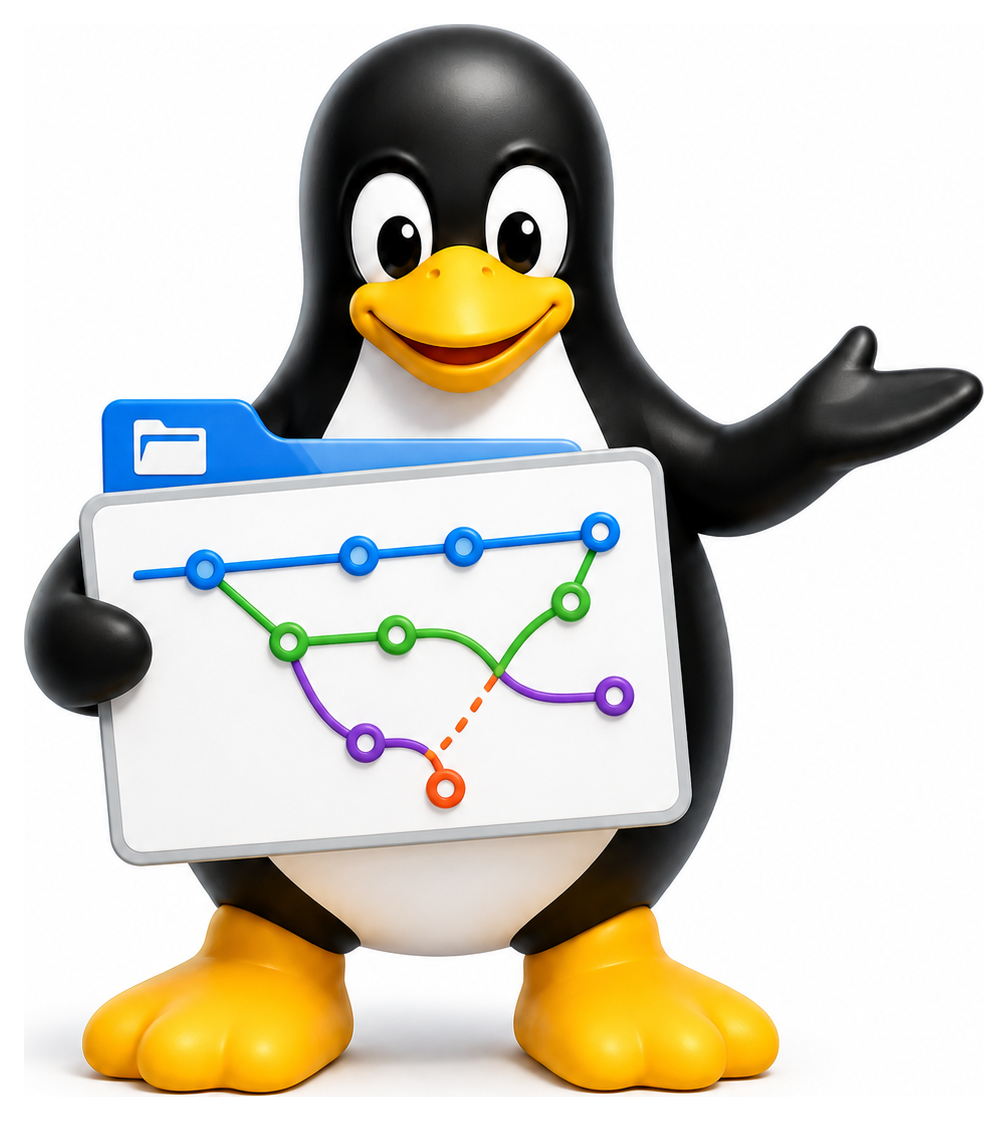
Version control is the single most important practice in modern software development, and Git is the tool that swept the field. In 2005, when a dispute broke up the relationship between the Linux kernel developers and the proprietary version control system they had been using, Linus Torvalds wrote Git in about two weeks. His design goals were speed, distributed operation, strong integrity, and support for non-linear development on a huge scale. Two decades later, Git runs essentially the whole of open source, most of the commercial software industry, and increasingly everything from novels to legal documents. If you want to work with other people on any kind of text, you need to know Git.
- Explain why version control matters and what problem git solves
- Initialise a repository and make commits with sensible messages
- Work with branches, including creating, switching, merging, and rebasing
- Collaborate via remotes using clone, push, pull, and fetch
- Resolve merge conflicts and use .gitignore appropriately

Why Version Control?
Imagine writing a project without Git. You save report.doc, then report-v2.doc, then report-final.doc, then report-final-really.doc, then report-final-actuallyfinal.doc. A colleague sends you their version, and you try to merge the changes by hand. Something gets lost. You cannot remember what changed between Tuesday and Friday. You cannot try an experimental change without risking the stable version.
Version control solves all these problems at once. It keeps a full history of every change, with who made it and when. It lets you work on multiple parallel lines of development (branches) without stepping on each other. It lets you compare any two points in history and see exactly what is different. It lets you rewind, experiment, and merge. For any project bigger than "a single one-off script", it is indispensable.
How Git Thinks
Git is famously confusing in its terminology but conceptually clean once you see the picture. Three ideas underpin everything:
- A commit is a snapshot of the entire project at a moment in time, along with metadata (author, date, message) and a pointer to its parent commit.
- A branch is a movable pointer to a commit. Switching branches just moves the pointer.
- Git is distributed: every clone of a repository is a complete copy of the full history, not just a working copy pointing at a central server.
Every commit is identified by a 40-character hexadecimal hash computed from its contents: the files, the tree structure, the metadata, and the parent hashes. Change anything and the hash changes. This is how Git ensures integrity: you cannot silently alter history, because the hashes would no longer match.
Table 16.1: The four areas in Git
| Area | What Lives There | How to Move In |
|---|---|---|
| Working directory | Files you edit | (just edit) |
| Staging area (index) | What will go in the next commit | git add |
| Local repository | Committed history on your disk | git commit |
| Remote repository | History on a server (GitHub etc.) | git push / git fetch |
First Steps
Start by telling Git who you are. This metadata goes into every commit you make:
git config --global user.name "Chris Paton"
git config --global user.email "chris@example.com"
git config --global init.defaultBranch main
git config --global pull.rebase false
Now create a repository:
mkdir myproject
cd myproject
git init
# Initialised empty Git repository in /home/chris/myproject/.git/
The .git/ subdirectory is where Git stores all its data: the entire history, configuration, and object database. Delete .git/ and the project reverts to a plain directory with no version control.
Making Your First Commit
The basic workflow has three areas:
- The working directory: the files as they currently exist on disk.
- The staging area (or index): a list of changes you intend to commit.
- The repository: the committed history.
You move files from one to the next with git add and git commit:
echo "Hello, world" > README.md
git status
# Untracked files:
#   README.md

git add README.md
git status
# Changes to be committed:
#   new file:   README.md

git commit -m "Initial commit"
# [main (root-commit) a1b2c3d] Initial commit
#  1 file changed, 1 insertion(+)
#  create mode 100644 README.md
The message in -m should describe what changed and why. Good commit messages are a gift to your future self and to anyone else who reads the history. A commonly cited format: a short imperative summary (fifty characters or less), then a blank line, then a longer explanation if necessary.
Fix null pointer crash in login handler

When a user submitted an empty username, the handler dereferenced
a null variable. Added an early return that rejects empty strings
before the lookup.
Everyday Commands
git status                  # what has changed?
git diff                    # show unstaged changes
git diff --staged           # show staged changes
git add file.txt            # stage a file
git add .                   # stage everything in current directory
git commit -m "Message"     # commit staged changes
git commit -am "Message"    # stage all tracked files and commit
git log                     # show commit history
git log --oneline --graph   # condensed graphical view
git show a1b2c3d            # show a specific commit
git log has an overwhelming number of options. A common useful combination:
git log --oneline --graph --decorate --all
It shows every branch, every commit, in a condensed graphical form, with branch labels.
Table 16.2: Everyday git commands
| Command | Purpose |
|---|---|
| git init | Create a new repository |
| git clone url | Copy a remote repository |
| git status | Show working tree state |
| git diff | Unstaged changes |
| git diff --staged | Staged changes |
| git add file | Stage changes |
| git add -p | Stage hunks interactively |
| git commit -m "msg" | Record staged changes |
| git commit --amend | Fix the last commit |
| git log | View history |
| git log --oneline --graph | Compact tree view |
| git show commit | Show a specific commit |
| git restore file | Discard working-tree changes |
| git restore --staged file | Unstage |
Branches
A branch is the fundamental unit of parallel development. When you create a branch, you are effectively saying "I want to do some work that is related to but separate from the main line". You can then merge it back when it is done.
git branch                  # list branches
git branch feature/login    # create a new branch
git checkout feature/login  # switch to it
git switch feature/login    # modern equivalent
git checkout -b feature/login    # create and switch in one step
git switch -c feature/login      # modern equivalent
The older checkout command is a swiss army knife that does too many things; recent Git versions split its jobs between switch (for branches) and restore (for files). Either works.
Work on the branch as normal. When you are ready to merge it back:
git switch main
git merge feature/login
If the changes can be combined cleanly, Git makes a merge commit that has two parents: the tip of main and the tip of feature/login. If there are conflicts, Git stops and asks you to resolve them.
Delete a branch when you are done with it:
git branch -d feature/login    # safe (refuses if unmerged)
git branch -D feature/login    # force
Table 16.3: Branching and merging
| Command | Purpose |
|---|---|
| git branch | List local branches |
| git branch name | Create a new branch |
| git switch name | Switch to an existing branch |
| git switch -c name | Create and switch |
| git checkout name | Switch (older syntax) |
| git merge other | Merge other into current branch |
| git rebase other | Replay commits on top of other |
| git rebase -i HEAD~5 | Interactive rebase of last 5 |
| git cherry-pick commit | Apply a specific commit |
| git branch -d name | Delete a merged branch |
| git branch -D name | Force-delete a branch |
Merge Conflicts
A conflict happens when two branches have changed the same lines in incompatible ways. Git cannot decide for you, so it marks the conflicted regions in the file and asks you to edit them.
<<<<<<< HEAD
This is the version on main.
=======
This is the version on the feature branch.
>>>>>>> feature/login
Edit the file, keep whichever content you want (possibly a combination of both), remove the conflict markers, and then:
git add file.txt
git commit
The commit completes the merge. Many graphical tools (VS Code, meld, kdiff3) provide three-way merge interfaces that make this less error-prone than editing by hand.
Rebasing
A rebase is an alternative to merging that replays your branch's commits on top of another branch, producing a linear history.
git switch feature/login
git rebase main
Instead of a merge commit, your commits are rewritten as though they had always been based on the latest main. This gives a cleaner history, but it rewrites commit hashes, which is a problem if you have already pushed the branch to a shared remote. A common rule of thumb: rebase local branches, merge public ones.
Interactive rebase (git rebase -i) is one of Git's most powerful features. It lets you squash multiple commits into one, reorder commits, or rewrite messages before a merge. Indispensable for keeping a tidy history before you push.
Remotes: Working with Others
A remote is a Git repository stored somewhere else, usually on a server. The canonical remote for a project is named origin by convention.
git clone https://github.com/user/repo.git
cd repo
git remote -v
# origin  https://github.com/user/repo.git (fetch)
# origin  https://github.com/user/repo.git (push)
To pick up new commits from the remote:
git fetch origin            # download, but do not merge
git pull                    # fetch + merge in one step
To upload your commits:
git push origin main
git push -u origin feature/login   # first push of a new branch
The -u (or --set-upstream) tells Git to remember that your local feature/login tracks origin/feature/login, so future git push and git pull calls do not need to specify the branch.
Table 16.4: Working with remotes
| Command | Purpose |
|---|---|
| git remote -v | List remotes |
| git remote add origin url | Add a remote called origin |
| git fetch origin | Download remote commits (no merge) |
| git pull | Fetch + merge |
| git pull --rebase | Fetch + rebase |
| git push | Upload commits |
| git push -u origin branch | Push and set upstream |
| git push --force-with-lease | Safer force push |
| git clone --depth 1 url | Shallow clone (quick) |
.gitignore
Some files should not be tracked by Git: compiled binaries, caches, editor swap files, secrets. Create a .gitignore file at the root of the repository:
# Build artefacts
build/
*.o
*.pyc
__pycache__/

# Editor files
*.swp
.vscode/

# Secrets
.env
credentials.json
Files and patterns listed here are ignored by git add . and do not appear in git status. You should always have a .gitignore before your first commit. Removing an accidentally committed secret from history later is possible but annoying.
Table 16.5: .gitignore pattern syntax
| Pattern | Meaning |
|---|---|
| *.log | All files ending in .log |
| build/ | Entire directory named build |
| /secret | Only top-level secret (anchored) |
| **/node_modules | node_modules at any depth |
| !keep.log | Un-ignore keep.log |
| # comment | A comment line |
GitHub, GitLab, and Friends
Git itself is a command-line tool. GitHub, GitLab, Bitbucket, and Gitea are web services built around Git that add issue tracking, pull/merge requests, code review, continuous integration, and project management. They also host the remote repositories that your local Git pushes to and pulls from.
The key concept introduced by these services is the pull request (GitHub) or merge request (GitLab): a proposal to merge one branch into another, with a thread of review comments and the ability to run automated tests. Modern open source development is built on this workflow. If you contribute to any project hosted on these services, you will propose changes by:
- Forking the repository to your own account.
- Cloning your fork locally.
- Creating a feature branch.
- Making and committing your changes.
- Pushing the branch to your fork.
- Opening a pull request from your fork's branch to the upstream main.
- Responding to review feedback, pushing more commits as needed.
- Eventually seeing the PR merged.
GitHub's command-line tool gh streamlines this workflow considerably.
Common Situations
I committed to the wrong branch. Use git cherry-pick to copy the commit to the right branch, then reset the wrong one.
I committed something secret. Stop. Do not push. Use git commit --amend to rewrite the commit, or git reset to unwind it. If you already pushed, the secret should be considered leaked and rotated.
I want to undo the last commit but keep the changes. git reset --soft HEAD~1 unwinds the commit but leaves your changes staged.
I want to throw away my uncommitted changes. git restore file.txt reverts a specific file, or git restore . everything. Be careful: there is no undo.
I want to save my work temporarily without committing. git stash stashes the changes and gives you a clean working tree; git stash pop restores them.
Table 16.6: Common 'oh no' situations
| Problem | Fix |
|---|---|
| Staged wrong file | git restore --staged file |
| Committed wrong file | git commit --amend |
| Need to undo last commit (keep changes) | git reset --soft HEAD~1 |
| Need to throw away last commit | git reset --hard HEAD~1 |
| Committed to wrong branch | git cherry-pick + git reset |
| Lost a commit | git reflog (then checkout the hash) |
| Merge conflict | Edit files, git add, git commit |
| Detached HEAD | git switch branch (or git switch -c new) |
The Bigger Picture
Git is a tool with a famously rough user interface. Linus Torvalds built it to solve a specific problem and never intended it for end users. But underneath the arcane commands is a surprisingly clean and elegant model: a directed acyclic graph of content-addressed snapshots, with branches as movable references. Once you internalise that mental model, the commands start to make sense.
You will use Git every day for the rest of your programming life. Spend an hour or two reading git help everyday, or one of the many good free Git books, and it will repay you a thousand times over. Version control is not optional in 2026, and Git is the only implementation that really matters.
