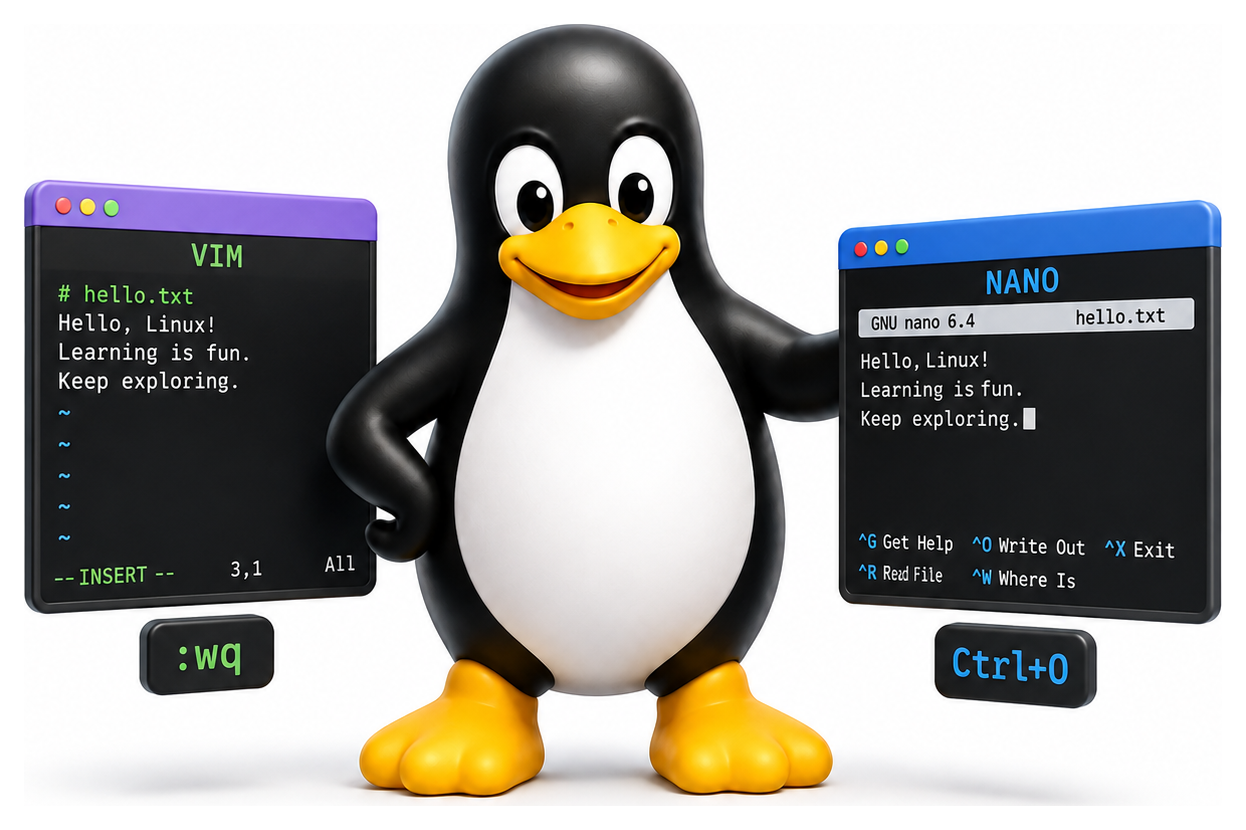
At some point in the not-too-distant future, you will find yourself staring at a server over SSH, with no graphical tools, needing to edit a configuration file. What you type next determines how much of the rest of your day is going to be pleasant. If you know at least one text editor well, it is a five-minute fix. If you do not, it is an hour of frustration. This chapter will get you from nothing to productive in both nano (easy) and vi/Vim (worth the effort), and gesture at why many experienced Linux users regard Vim as a lifelong partner rather than a mere tool.
- Explain why a text editor is an essential Linux tool and which choices exist
- Use nano for simple edits without prior training
- Move, edit, and save files in vi using normal-mode commands
- Compose vi motions and operators to edit efficiently
- Customise Vim and extend it with plugins
Why Command-Line Editors Matter
Modern graphical editors, such as VS Code, Sublime Text, and the JetBrains IDEs, are wonderful for writing software on a laptop. But they are not installed on every server you will ever log in to. When you SSH into a remote machine to fix a broken config, you get whatever editors the server has, usually nano and vi, and you must be able to use them. Command-line editors also start instantly, work over slow connections, handle enormous files without choking, and can be driven entirely from the keyboard, which, once you are fluent, is much faster than reaching for a mouse.
Nano: The Easy Option
Nano is the beginner-friendly option. It was created in 1999 by Chris Allegretta as a free clone of Pico, the simple editor that came with the Pine mail program but was not distributed under a free-software licence. Nano shows a menu of commands at the bottom of the screen, so you never have to memorise anything, and the basic operations work exactly the way you expect from a graphical editor.
nano /etc/hosts
The interface:
  GNU nano 6.2          /etc/hosts

127.0.0.1       localhost
127.0.1.1       my-laptop

^G Help  ^O Write Out  ^W Where Is  ^K Cut      ^J Justify  ^C Cur Pos
^X Exit  ^R Read File  ^\ Replace   ^U Paste    ^T To Spell ^_ Go To Line
The ^ means the Control key. So ^X is Ctrl+X (exit), ^O is Ctrl+O (save, or "write out"), ^W is Ctrl+W (search, or "where is"), and so on. Type characters as normal, use arrow keys to move, and press Ctrl+X when you are done. If you have made changes, nano asks whether to save them. Press Y for yes, then confirm the filename with Enter.
Nano is perfect for "I just need to change one line in a config file" situations. It has no learning curve at all. But for heavy editing it is slow, because everything is done by moving the cursor character by character: no higher-level motion commands, no macros, no real extensibility.
vi: The Universal Editor
vi is the Unix editor. Bill Joy at Berkeley began work on it in 1976 (initially as a visual mode for the line editor ex); the visual mode was first installed under the name vi in 1979 with 2BSD. Terminals at the time were serial devices running over 1200-baud modems and every keystroke was expensive. Joy's design philosophy was to make common operations possible with a single character, and to allow complex edits to be composed out of small pieces. Nearly fifty years later, those same design choices still pay off.

Every Unix system in the world comes with some version of vi. POSIX mandates it. Even the most minimal Alpine Linux install has it (sometimes via busybox vi). If you learn one editor that will always be there, it is vi.
Vim, short for "Vi IMproved", is a modern reimplementation by Bram Moolenaar, first released in 1991. It is the vi you will encounter on most Linux distributions, accessible as both vi and vim. It adds syntax highlighting, undo, plugins, and thousands of other improvements while remaining faithful to vi's design.
Modes: The Big Idea
The thing that throws every beginner about vi is that it has modes. Most editors are always "in insert mode": you type a letter, it appears in the document. Vi is different: most of the time, it is in normal mode, where letters you type are commands, not text. You enter insert mode when you want to type text, and you return to normal mode when you are done. The first thing to burn into muscle memory is: when in doubt, press Escape. It will always return you to normal mode, from which you can do anything.
Table 15.1: Vim modes
| Mode | Entered By | What You Do Here |
|---|---|---|
| Normal | Esc (default mode) | Move around, run commands, operate on text |
| Insert | i, a, o, I, A, O | Type actual text |
| Visual | v, V, Ctrl-v | Select characters / lines / blocks |
| Command-line | : / ? | Run ex commands, search |
| Replace | R | Overtype existing characters |
| Terminal | :terminal | Embedded shell (Neovim / modern Vim) |
Opening, Saving, and Quitting
vim file.txt         # open a file (creates it if missing)
vim +25 file.txt     # open at line 25
vim -R file.txt      # read-only mode
Inside vim, commands that start with : are entered in command mode. The essentials.
The classic beginner story: you open a file accidentally, cannot work out how to quit, and end up rebooting the machine. The escape hatch is Esc, then :q!, then Enter.
Table 15.2: Essential ex (colon) commands
| Command | Action |
|---|---|
| :w | Write (save) |
| :w filename | Save as |
| :q | Quit |
| :q! | Quit without saving |
| :wq / ZZ / :x | Save and quit |
| :e file | Open another file |
| :r file | Read file into buffer |
| :%s/old/new/g | Global substitute |
| :g/pat/d | Delete every line matching pat |
| :set number | Show line numbers |
| :sp / :vsp | Horizontal / vertical split |
| :help topic | Built-in documentation |
Basic Motion
In normal mode, you navigate with single letters.
The arrow keys work too, but hjkl is faster once your muscle memory adapts, and it is what experienced users do. (The arrangement is historical: Bill Joy's terminal, the ADM-3A, had arrows printed on those keys.)
Table 15.3: Vim motion commands
| Key | Motion |
|---|---|
| h j k l | Left / down / up / right |
| w / W | Next word (W = space-separated) |
| b / B | Previous word |
| e / E | End of word |
| 0 | Start of line |
| ^ | First non-blank character |
| $ | End of line |
| gg | Top of file |
| G | Bottom of file |
| nG / :n | Jump to line n |
| Ctrl-d / Ctrl-u | Half-page down / up |
| Ctrl-f / Ctrl-b | Full page down / up |
| { / } | Previous / next blank line |
| % | Matching bracket |
| f |
Jump to next char c (t = up to) |
| * | Next occurrence of word under cursor |
Editing: Insert, Change, Delete
To enter insert mode. Press Escape to return to normal mode when you are done typing.
Deleting and changing in normal mode. Copying (yanking) and pasting:
Table 15.4: Vim editing operators
| Key | Action |
|---|---|
| i / a | Insert before / after cursor |
| I / A | Insert at line start / end |
| o / O | Open line below / above |
| x / X | Delete char forward / backward |
| d |
Delete over motion (e.g. dw, d$) |
| dd | Delete current line |
| c |
Change (delete + insert) |
| cc | Change whole line |
| y |
Yank (copy) over motion |
| yy | Yank current line |
| p / P | Paste after / before cursor |
| u | Undo |
| Ctrl-r | Redo |
| . | Repeat last change |
Operators, Motions, and Counts: The Composable Superpower
Here is the thing that, once it clicks, makes vi feel like magic. Commands are built out of three pieces: an optional count, an operator, and a motion. The operator says what to do; the motion says what to do it to.
Operators include d (delete), c (change), and y (yank). Motions include w (word), $ (end of line), G (end of file), and many others. So:
dwdeletes one word.d3wdeletes three words.d$deletes to the end of the line.dGdeletes from here to the end of the file.cwchanges a word.y5jyanks five lines downward.
This is the grammar that lets experienced vim users work at lightning speed. Rather than memorising hundreds of commands, you memorise a small set of operators and a small set of motions, and combine them freely.
Vim also adds text objects: named regions like "the current word", "inside parentheses", "a whole paragraph":
diwdeletes the word the cursor is on (even from the middle).ci(changes what is inside the enclosing parentheses.yi"yanks what is inside the enclosing quotes.dasdeletes a sentence.
Once you internalise text objects, editing feels like describing what you want rather than pecking at keys one at a time.
Searching and Replacing
To search forward for a pattern, press /, type the pattern, and press Enter:
/error
Press n for the next match, N for the previous. ? searches backwards.
To substitute, use ex commands:
:s/foo/bar/        replace first foo on this line with bar
:s/foo/bar/g       replace all foos on this line
:%s/foo/bar/g      replace all foos in the whole file
:%s/foo/bar/gc     same, but confirm each
The % means "every line". You can also give a range: :5,10s/foo/bar/g substitutes on lines 5 through 10.
Visual Mode
Press v to enter character visual mode, V for line visual mode, or Ctrl+V for block visual mode. Move the cursor to extend the selection, then apply an operator: d to delete, y to yank, c to change, > or < to indent.
Block visual mode is one of vim's party tricks. Select a rectangular region, then press I (capital I), type text, and press Escape. The text is inserted at the start of every selected line. Great for adding comment characters to a block of code.
.vimrc: Making It Your Own
Vim is endlessly configurable. Settings go in ~/.vimrc. A sensible starting point:
" Show line numbers
set number
" Highlight matching brackets
set showmatch
" Case-insensitive search, unless the pattern has uppercase
set ignorecase
set smartcase
" Indentation
set expandtab
set tabstop=4
set shiftwidth=4
" Syntax highlighting
syntax on
" Use the system clipboard
set clipboard=unnamedplus
" Keep 5 lines of context when scrolling
set scrolloff=5
Each line changes an aspect of vim's behaviour. :help option inside vim gives you documentation for any option.
Table 15.5: Popular .vimrc settings
| Setting | Effect |
|---|---|
| set number | Show absolute line numbers |
| set relativenumber | Line numbers relative to cursor |
| set expandtab | Use spaces, not tabs |
| set tabstop=4 shiftwidth=4 | 4-space indent |
| set ignorecase smartcase | Case-smart search |
| set incsearch hlsearch | Incremental + highlighted search |
| set mouse=a | Enable mouse in all modes |
| syntax on | Syntax highlighting |
| filetype plugin indent on | Per-language rules |
Plugins
Vim has a thriving plugin ecosystem. Plugin managers like vim-plug let you install plugins from GitHub with a few lines in your ~/.vimrc:
call plug#begin('~/.vim/plugged')
Plug 'tpope/vim-fugitive'
Plug 'preservim/nerdtree'
Plug 'junegunn/fzf.vim'
Plug 'dense-analysis/ale'
call plug#end()
Run :PlugInstall and the plugins are fetched and loaded. The classic additions: vim-fugitive for Git integration, NERDTree for a file tree sidebar, fzf for fuzzy file finding, ALE for on-the-fly linting.
Neovim
Neovim is a fork of Vim started in 2014 that modernises the codebase, adds built-in language-server support, and embeds Lua as a configuration language. For many Linux users, especially developers, it has become the default. Everything in this chapter applies to Neovim unchanged, but it offers a cleaner platform for serious customisation.
Which Should You Learn?
Pragmatically: learn enough nano to edit a config file (ten minutes), and learn enough vi to never be stuck on a server again (about an hour of focused practice). After that, if you spend a lot of time in the terminal, consider making Vim your primary editor. The investment is real (perhaps a few weeks of slightly slower editing while the motions become automatic), but the payoff is a lifetime of editing at the speed of thought, on every machine you ever log into.
There is a famous piece of advice: "Don't learn Vim, because you will never want to use anything else again." There is more truth in that joke than most people want to admit.
Table 15.6: Vim vs nano vs emacs
| Editor | Learning Curve | Strengths | Weaknesses |
|---|---|---|---|
| nano | None | Intuitive, menu at bottom | Slow editing, few features |
| vi / Vim | Steep | Everywhere, composable, blazing fast once learned | Modal, unforgiving at first |
| Emacs | Steep | Extensible in Lisp, doubles as an OS | Heavy, chorded keys (pinky strain) |
| Neovim | Steep | Modern fork of Vim: Lua config, LSP, async | Same as Vim |
