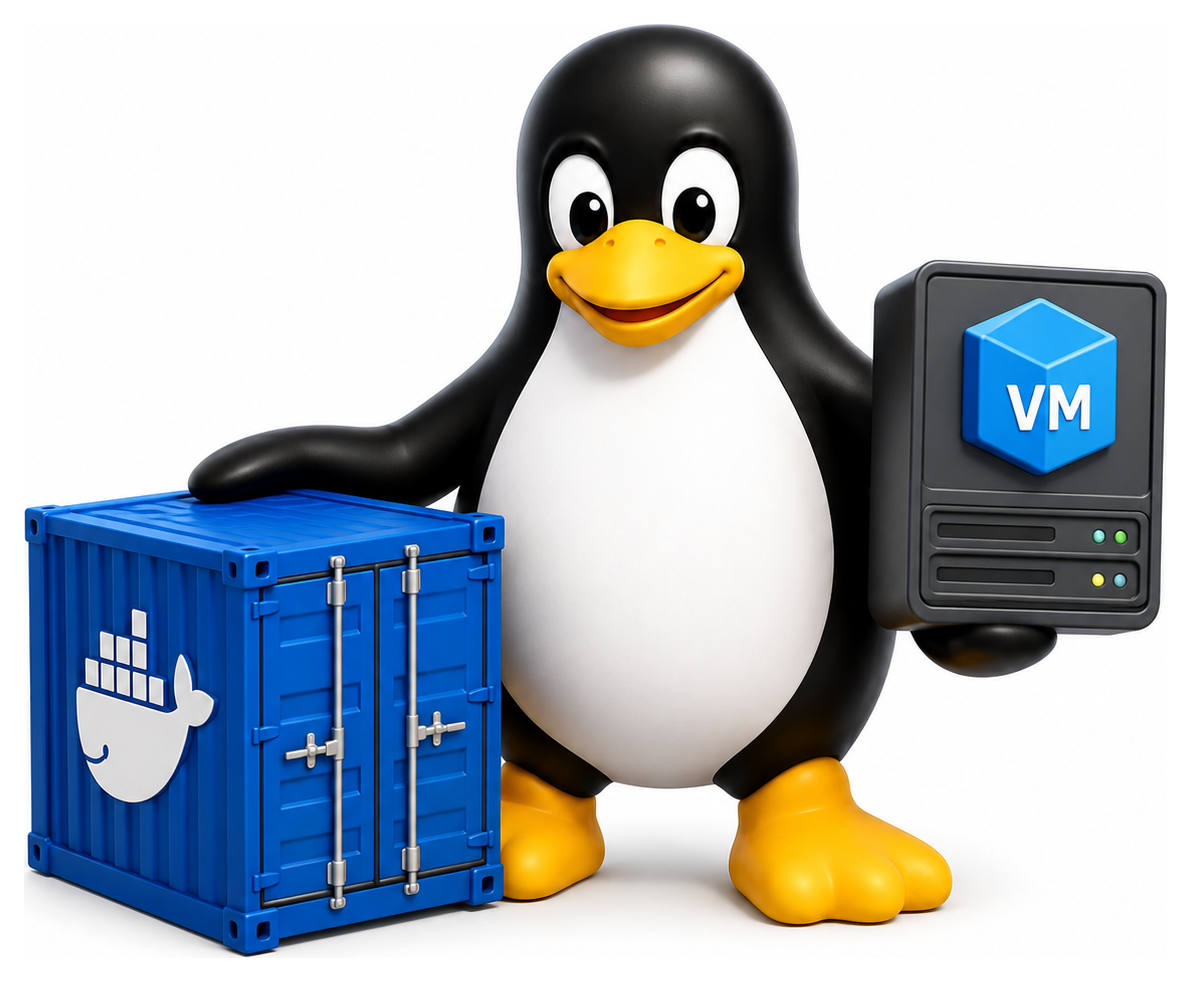
Around 2013, a quiet technology shift began in the server world that, within five years, had remade how software was built, shipped, and run. The shift is usually called containerisation, and its public face is Docker. But containers are not a Docker invention. They are a long-running line of Linux kernel features that Docker packaged into a story developers could understand. Today, containers run essentially all of modern cloud infrastructure, and understanding them is non-negotiable if you work in software. This chapter explains what they are, how they work, and how to use them.
- Distinguish between virtual machines and containers and explain the trade-offs
- Describe the kernel features (namespaces, cgroups) that make containers possible
- Build and run container images with Docker or Podman
- Write a Dockerfile for a simple application
- Explain the role of registries, Kubernetes, and the OCI standard
Virtual Machines: The Old Way
Before containers, if you wanted to run several applications in isolation on one server, so that a bug in one did not affect the others, so that each could have its own library versions, you used virtual machines. A VM is a complete simulated computer, with its own kernel, its own filesystem, its own network stack, running on top of a hypervisor that manages the real hardware.
Hypervisors come in two flavours. Type 1 hypervisors (VMware ESXi, Microsoft Hyper-V, Xen, KVM) run directly on the hardware. Type 2 hypervisors (VirtualBox, VMware Workstation) run on top of a host operating system. Either way, the guest operating system is fully independent.
VMs are wonderful when you want strong isolation. A compromised VM cannot see any of the host's data. Different VMs can run different operating systems: a Linux host can run Windows and BSD VMs side by side. But they are heavy. Each VM boots a full kernel, consumes hundreds of megabytes of RAM for the OS alone, and takes seconds to start. On a machine that should be running fifty web services, VMs waste a lot of resources on duplicated operating systems.
Containers: Lightweight Isolation
A container is a process (or group of processes) that the kernel has arranged to think it is alone on the machine. Everything it sees, including files, network interfaces, process list, and users, is a view that the kernel curates for it. But there is only one kernel, shared by all containers and the host. Containers are not simulated computers; they are just processes with blinkers.
This has enormous consequences. A container boots in milliseconds, not seconds. It consumes only the memory its processes actually use, not hundreds of megabytes for a guest OS. You can run hundreds of containers on a single host where you could only run a dozen VMs. But the isolation is weaker: a kernel vulnerability that lets a container break out compromises the host. For most applications this trade-off is worth it, and for the cases where it is not, containers-inside-VMs gives you the best of both worlds.
Table 17.1: VM vs container
| Property | Virtual Machine | Container |
|---|---|---|
| Isolates | Hardware | Processes and namespaces |
| Guest kernel | Own kernel per VM | Shares host kernel |
| Boot time | Tens of seconds | Milliseconds |
| Image size | Gigabytes | Megabytes to hundreds of MB |
| Memory overhead | Hundreds of MB per VM | Only the process footprint |
| Density | Dozens per host | Hundreds to thousands |
| Security boundary | Strong (hardware-assisted) | Weaker (shared kernel) |
| Use case | Run different OSes | Package and ship an app |
Table 17.2: Typical startup characteristics: bare metal, VMs, and containers
| Environment | Typical startup time | Isolation |
|---|---|---|
| Bare-metal boot | Tens of seconds (firmware + kernel + init) | Full hardware |
| Full VM (hypervisor) | Seconds to tens of seconds | Hardware-virtualised |
| Cloud VM instance | Seconds to minutes (provisioning dominated) | Hardware-virtualised |
| Container (cold start) | Under a second (image pull excluded) | Kernel namespaces + cgroups |
| Container (warm start) | Tens of milliseconds | Kernel namespaces + cgroups |
The Kernel Features Behind Containers
Two Linux kernel features, neither of them new, make containers possible.
Namespaces let the kernel give different processes different views of system resources. There are several kinds. Put a process in a new PID namespace and it sees itself as PID 1 and cannot see any other processes. Put it in a new network namespace and it has its own loopback and no visible external interfaces. Put it in a new mount namespace and you can give it an entirely different view of the filesystem.
Control groups, or cgroups, let the kernel enforce resource limits on a group of processes: maximum memory, maximum CPU, maximum I/O bandwidth, maximum number of processes. Cgroups are how you prevent one container from starving the rest of the machine.
Namespaces isolate; cgroups constrain. Together they provide the foundation every container runtime builds on. These features have been in the Linux kernel for more than a decade, used by projects like LXC before Docker ever existed. What Docker did was not to invent them but to make them approachable.
Table 17.3: Kernel features that power containers
| Feature | What It Isolates / Controls |
|---|---|
| Namespaces | PIDs, mounts, network, UTS (hostname), users, IPC, cgroup |
| Cgroups (v2) | CPU, memory, I/O, PIDs limits |
| chroot / pivot_root | Root filesystem view |
| Capabilities | Fine-grained root powers (CAP_NET_ADMIN etc.) |
| seccomp-bpf | Filter the system calls a process can make |
| OverlayFS | Layered, copy-on-write filesystems for images |
| LSMs (SELinux, AppArmor) | Mandatory access control |
Docker: The Packaging Revolution
Docker's big contribution was the idea of a container image: a frozen, shareable snapshot of an entire application environment (the binaries, libraries, configuration, everything needed to run) that you could build once and run anywhere the Docker engine was installed. Images could be stored in registries (public or private), pulled with a single command, and launched in a second.
The workflow became:
docker pull nginx:latest
docker run -d -p 8080:80 nginx:latest
The first command downloads the official Nginx image. The second starts a container from it, running in the background (-d), mapping port 8080 on the host to port 80 in the container. Suddenly, running a web server on any machine with Docker is two commands. This was revolutionary compared with the old world of provisioning scripts and configuration management.
Everyday Docker Commands
docker ps                       # list running containers
docker ps -a                    # include stopped ones
docker images                   # list local images
docker pull ubuntu:22.04        # download an image
docker run -it ubuntu:22.04 bash   # start interactive shell in a container
docker exec -it mycontainer bash   # shell into a running container
docker logs mycontainer         # show its stdout/stderr
docker stop mycontainer
docker rm mycontainer
docker rmi image:tag            # delete an image
docker system prune             # clean up unused containers, images, networks
The -it flags combine --interactive (keep stdin open) and --tty (allocate a pseudo-terminal), which together make a shell session work. The -d flag runs detached. The -p host:container flag publishes a port. The -v /host/path:/container/path flag mounts a host directory into the container.
A typical real-world command:
docker run -d \
  --name webapp \
  -p 8080:80 \
  -v /srv/webapp/data:/var/www/data \
  -e DB_URL=postgres://db/webapp \
  --restart unless-stopped \
  myorg/webapp:1.2.3
Table 17.4: Everyday Docker commands
| Command | Purpose |
|---|---|
| docker pull image | Download an image |
| docker images | List local images |
| docker run image | Run a container from an image |
| docker run -it image bash | Interactive shell |
| docker run -d --name web nginx | Detached with a name |
| docker run -p 8080:80 nginx | Publish a port |
| docker run -v $PWD:/app image | Bind-mount a directory |
| docker ps | Running containers |
| docker ps -a | All containers (including stopped) |
| docker logs -f name | Follow container logs |
| docker exec -it name bash | Shell into a running container |
| docker stop name | Stop a container |
| docker rm name | Remove a container |
| docker rmi image | Remove an image |
| docker build -t tag . | Build image from Dockerfile |
| docker system prune | Clean up dangling resources |
Dockerfile: Building Images
A Dockerfile is a script that describes how to build an image. Each instruction adds a layer to the image.
FROM python:3.12-slim

WORKDIR /app

COPY requirements.txt .
RUN pip install --no-cache-dir -r requirements.txt

COPY . .

EXPOSE 8000
CMD ["python", "-m", "myapp"]
Reading top to bottom:
FROMpicks a base image to start from.WORKDIRsets the working directory inside the image.COPYcopies files from the build context into the image.RUNexecutes a command during the build.EXPOSEdocuments the port the container listens on (informational only).CMDspecifies the default command to run when a container starts from the image.
Build and run:
docker build -t myapp:latest .
docker run -d -p 8000:8000 myapp:latest
Each instruction caches its result. If you change only the last COPY, Docker re-uses the earlier layers, which makes iterative builds fast. The art of writing efficient Dockerfiles is mostly about ordering instructions so that the slow, expensive layers (installing dependencies) are above the fast, frequently-changing layers (copying source code).
Table 17.5: Common Dockerfile directives
| Directive | Purpose |
|---|---|
| FROM | Base image |
| RUN | Run a command at build time (creates a layer) |
| COPY | Copy files from build context into image |
| ADD | Like COPY but also fetches URLs / extracts tar |
| WORKDIR | Set working directory |
| ENV | Set an environment variable |
| EXPOSE | Document which port the app listens on |
| USER | Drop to an unprivileged user |
| CMD | Default command when container runs |
| ENTRYPOINT | Fixed command; CMD becomes its default args |
| HEALTHCHECK | How to probe container health |
Building Images Well: Security and Best Practices
A Dockerfile that technically works is not the same as a Dockerfile that should go to production. A few habits separate amateur images from professional ones.
Drop root with USER. By default, processes in a container run as root. If they get compromised, and the kernel has a container-escape vulnerability, they get root on the host. Every serious image should create an unprivileged user and switch to it before CMD:
RUN useradd -r -u 1001 app
USER app
CMD ["python", "-m", "myapp"]
Use multi-stage builds. Compilers, build tools, and package caches do not belong in the final image. A multi-stage Dockerfile uses one stage to build and a second, minimal stage to run. Only the compiled artefacts cross the boundary:
FROM golang:1.22 AS build
WORKDIR /src
COPY . .
RUN go build -o /out/app ./cmd/app

FROM gcr.io/distroless/static-debian12
COPY --from=build /out/app /app
USER nonroot
ENTRYPOINT ["/app"]
The result is a production image of maybe 10 megabytes with no shell, no package manager, and nothing that is not the application binary itself.
Pick a minimal base. ubuntu:latest is convenient for development but carries hundreds of megabytes of files your application will never touch, and every one of those files is a potential CVE. Google's distroless images (gcr.io/distroless/) contain only language runtimes with no shell or package manager. For statically-compiled binaries, FROM scratch is even more extreme: an empty image with nothing but your executable. Smaller images mean faster deploys, lower registry bandwidth, and dramatically reduced attack surface.
Use BuildKit and docker buildx. The modern Docker build system, BuildKit, supports features the old builder lacks: parallel execution of independent stages, mount caches (RUN --mount=type=cache,target=/root/.cache/pip pip install ...) to avoid re-downloading dependencies on every build, secrets that never land in image layers (RUN --mount=type=secret,id=npmrc ...), and multi-platform builds (docker buildx build --platform linux/amd64,linux/arm64). It is on by default in modern Docker, but docker buildx is the command that unlocks the most powerful features.
Run the daemon rootless. Both Docker and Podman support rootless mode, where the engine itself runs as a normal user rather than root. Podman has had excellent rootless support from the start (it is one of the main reasons to pick Podman over Docker in security-sensitive environments), and Docker added it a few years later. In rootless mode, a container escape buys an attacker only your user account, not the whole machine. On shared infrastructure this is a significant hardening step for a modest amount of setup.
The OCI Standard
In 2015, frustrated that Docker was both a company and a de facto standard, the industry formed the Open Container Initiative (OCI), which publishes open specifications for container images and runtimes. Today, "Docker image" and "OCI image" mean essentially the same thing, and any OCI-compliant runtime can run images built by any OCI-compliant tool.
This matters because Docker is no longer the only game in town. Podman, from Red Hat, is a drop-in replacement that runs containers without a central daemon and supports rootless containers: containers that an ordinary user can run without any special privileges. containerd is the low-level runtime that Docker itself uses underneath, and it is also what Kubernetes talks to directly. CRI-O is a Kubernetes-specific runtime. The container ecosystem has become a diverse, interoperable market, which is a healthy sign.
podman run -d -p 8080:80 nginx:latest
Works identically to Docker, without needing a daemon or root privileges.
Docker Compose
A real application usually involves multiple containers: a web server, a database, a cache, a background worker. docker-compose lets you declare the whole stack in a single YAML file:
services:
  web:
    build: .
    ports:
      - "8000:8000"
    environment:
      DB_URL: postgres://db:5432/app
    depends_on:
      - db

  db:
    image: postgres:16
    environment:
      POSTGRES_PASSWORD: secret
    volumes:
      - db-data:/var/lib/postgresql/data

volumes:
  db-data:
Then:
docker compose up -d
docker compose logs -f
docker compose down
All containers, all networks, all volumes managed as a unit. For local development and small deployments, compose is brilliant.
Kubernetes: Orchestration at Scale
When you have many containers running across many machines, you need something more powerful than compose. Kubernetes, originally written at Google and now a CNCF project, is the dominant answer.
Kubernetes is a declarative container orchestrator. You describe the desired state of your application in YAML (how many copies of each service, what resources they need, how they expose themselves), and Kubernetes continuously reconciles the actual state of the cluster to match. If a node fails, Kubernetes reschedules the lost containers elsewhere. If traffic spikes, it can spin up more replicas. If you push a new image, it rolls out the update gradually and rolls back if things go wrong.
The terminology is dense: pods (groups of co-located containers), deployments (managed sets of identical pods), services (stable network addresses for pods), ingresses (HTTP routing), namespaces (administrative partitions), secrets, configmaps, and many more. Learning Kubernetes is a book in its own right. For this chapter it is enough to know that it exists, that it runs essentially all of modern cloud infrastructure, and that the building blocks you are learning here are the primitives on which it is built.
Smaller local Kubernetes distributions like minikube, kind, and k3s let you run a real cluster on a laptop for learning.
Why Containers Won
Why did containers take over so fast?
- Consistent environments. "It works on my machine" becomes "It works in this image, which runs identically everywhere."
- Efficient packing. Dozens of containers fit where a few VMs fit, slashing infrastructure costs.
- Fast iteration. Build-ship-run cycles measured in seconds, not minutes.
- Declarative everything. Dockerfiles and compose files are version-controllable, reproducible, diffable. Infrastructure became code.
- Ecosystem. The public Docker Hub, now joined by GitHub Container Registry and countless private registries, made it trivial to share and reuse images.
The downsides are real too (security complexity, observability challenges, image bloat, dependency opacity), and serious shops invest significant effort in taming them. But the productivity gains are so large that there is no going back.
A Note on macOS and Windows
Docker does not really run on macOS or Windows, because it depends on the Linux kernel. Docker Desktop on those platforms runs a small Linux VM in the background and pretends to the user that containers are running natively. This means that on a Mac, docker run ubuntu is really "start a Linux VM, run a container inside it". The user experience is seamless but the layers are worth knowing when debugging strange performance issues.
Containers are Linux-native technology that has escaped Linux in appearance but not in reality. Every container you run, anywhere in the world, is ultimately a Linux process in a Linux kernel, usually running on Linux hardware in a Linux-heavy datacentre. It is a fitting triumph for the operating system this book is about.
