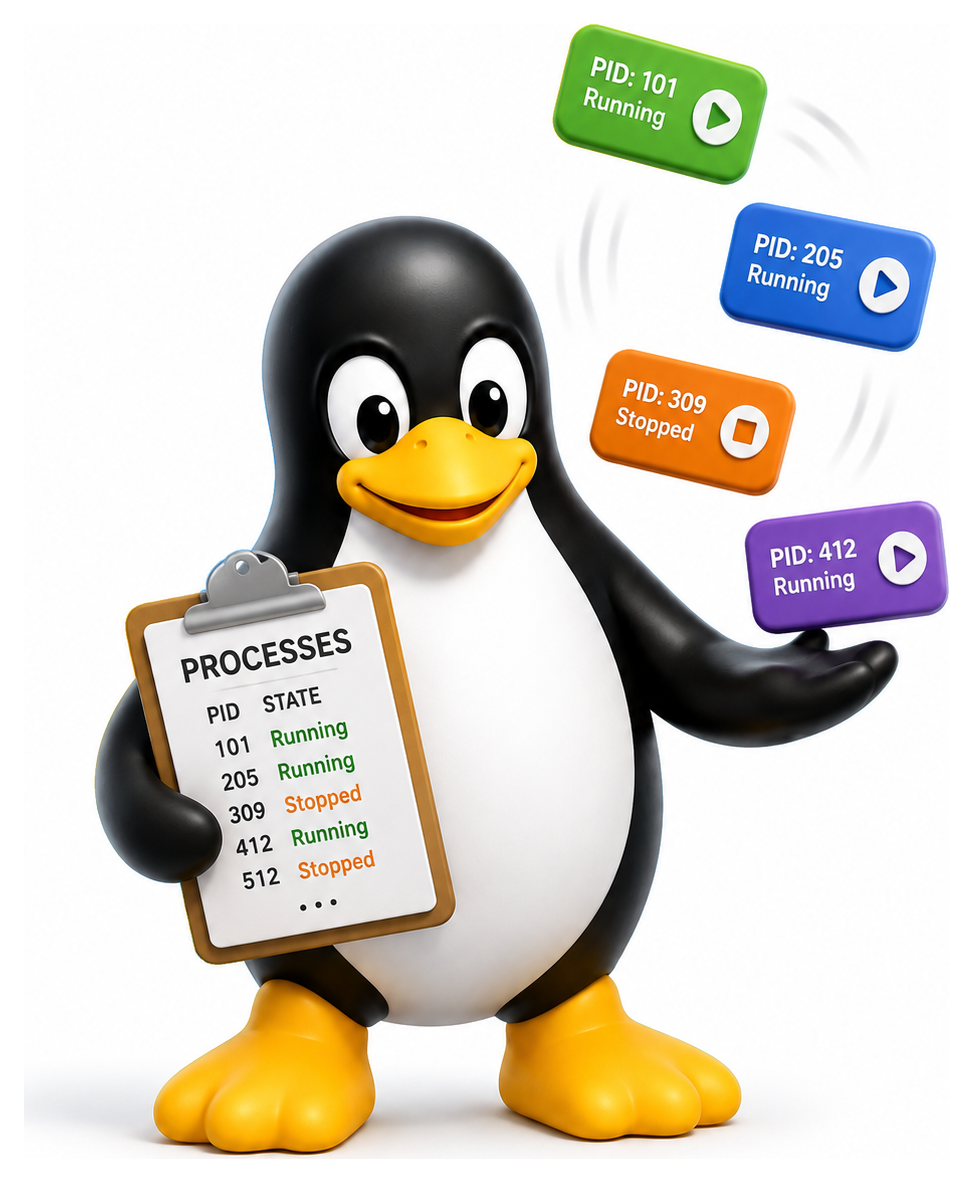
A running Linux system at any instant contains hundreds of processes: programs in execution. Some are visible to you, like the editor you are reading this in; most are hidden background services silently keeping the system alive. Understanding how processes are created, controlled, and communicate is central to almost everything you do on Linux, from troubleshooting a stuck program to running a workload that takes three days. This chapter is your process toolbox.
- Describe the Unix process model including PID, PPID, and process states
- Inspect running processes with ps, top, and htop
- Send signals to processes with kill and handle them correctly
- Use job control to manage foreground and background tasks
- Apply nohup, screen, and tmux to keep work running across disconnections
What a Process Is
A process is an instance of a running program. If you open three terminal windows and each runs bash, you have three bash processes, all executing the same program but each with its own memory, its own open files, its own working directory, and its own ID. Programs are passive (code on disk); processes are active (code executing in memory).
Each process has a PID, a positive integer that uniquely identifies it while it is running. PIDs are handed out in order and wrap around when they exhaust the configured range. Each process also has a PPID: the PID of its parent, the process that created it.
echo $$           # the current shell's PID
# 12345
echo $PPID        # and its parent's PID
# 12340
Every process on Linux has a parent, except for the very first one: PID 1, started by the kernel at boot. On a modern system this is systemd. If PID 1 ever dies, the kernel panics.
Fork and Exec
New processes come into being through two system calls that together constitute the most elegant idea in Unix.
fork() creates a new process by duplicating the current one. The parent returns from fork() with the PID of the new child; the child returns with 0. At the instant of the fork, both processes have identical memory contents, identical open files, identical everything except their PIDs.
execve() replaces the current process's memory image with a new program, loaded from an executable file. The PID does not change, but the code, the data, and the stack are all replaced.
The pair, usually called fork-and-exec, is how the shell starts every program you type. When you type ls, bash forks (now there are two bashes), and the child calls execve on /bin/ls, which atomically swaps the bash code for the ls code. Meanwhile the parent bash waits for the child to finish and then prints the prompt again.
Why this two-step dance? Because it lets the child set up its environment (open files, change directories, install signal handlers, set up pipes) before swapping in the new program. It is a design choice of extraordinary flexibility, and it is why pipes, redirection, and job control all work so cleanly.
Process States
At any moment a process is in one of several states. The notorious D state is uninterruptible sleep, usually waiting for disk or NFS. A process stuck in D cannot even be killed, because the kernel is not willing to interrupt it. If you see lots of D processes on a healthy system, something is wrong with I/O.
Zombies are harmless but aesthetically alarming. When a child process exits, its entry lingers in the process table until the parent calls wait() to collect its exit status. If the parent is sloppy, the zombie hangs around, unable to be killed (it is already dead) and consuming only a tiny bit of memory. Zombies are cleaned up if their parent dies, because PID 1 inherits orphaned children and waits on them.
Table 10.1: Process state codes (from ps)
| Code | Meaning |
|---|---|
| R | Running or runnable |
| S | Interruptible sleep (waiting for event) |
| D | Uninterruptible sleep (usually disk I/O) |
| T | Stopped (by SIGSTOP / SIGTSTP) |
| t | Stopped by debugger |
| Z | Zombie (terminated but not yet reaped) |
| I | Idle kernel thread |
Looking at Processes
ps
ps prints a snapshot of processes. Its argument syntax is notoriously odd because it tries to accept both BSD and System V forms. The two most useful invocations:
ps              # only your own processes on this terminal
ps aux          # BSD style: everything, with extra columns
ps -ef          # System V style: everything, full format
ps auxf         # ASCII-art process tree
The columns of ps aux:
USER PID %CPU %MEM VSZ RSS TTY STAT START TIME COMMAND
- VSZ is virtual memory size (the address space the process has mapped).
- RSS is resident set size (the physical RAM it currently occupies).
- STAT is the state letter (R, S, D, etc).
- TTY is the controlling terminal, or
?for a daemon.
For a hierarchical view:
pstree
# systemd─┬─NetworkManager
#         ├─bash───vim
#         ├─sshd───sshd───bash───pstree
top and htop
ps is a one-shot snapshot. top gives you a constantly updating view:
top
Keys inside top.
htop is a beloved third-party replacement: colourful, mouse-aware, and much easier to navigate. Install it and you will almost certainly prefer it.
htop
Table 10.2: Common ps invocations
| Command | Shows |
|---|---|
| ps | Just your shell and direct children |
| ps -e / ps -A | Every process on the system |
| ps -ef | Every process, full format (UNIX style) |
| ps aux | Every process, BSD style with %CPU/%MEM |
| ps -fU alice | Every process owned by user alice |
| ps -o pid,user,cmd | Custom columns |
| ps --forest / ps -ef --forest | ASCII process tree |
| pgrep -a nginx | PIDs (and cmdlines) matching 'nginx' |
| pstree | Dedicated tree view |
Signals
A signal is a short message the kernel or another process can deliver to a process, interrupting whatever it is doing. Signals are the basic mechanism for asynchronous notification in Unix.
The commonly used ones. The two uncatchable signals, SIGKILL and SIGSTOP, are the kernel's emergency brakes. A process cannot ignore them because the kernel handles them directly, without giving the process a chance to react.
Sending Signals
The kill command is misnamed: it does not necessarily kill, it sends signals.
kill 12345             # send SIGTERM (the default)
kill -9 12345          # send SIGKILL
kill -HUP 12345        # send SIGHUP
kill -l                # list all signal names
The idiomatic shutdown order is: try SIGTERM first, give the process a few seconds to clean up and exit gracefully, then escalate to SIGKILL only if it refuses to die. Ctrl+C in a terminal sends SIGINT to the foreground process, which is how you interrupt a command.
To kill by name rather than PID:
killall firefox        # all processes named firefox
pkill -f "python myscript"   # by matching the full command line
killall is dangerous on some Unix systems (on Solaris it literally kills all processes and takes the machine down) but on Linux it matches by name and is reasonably safe.
Table 10.3: Common Unix signals
| # | Name | Default | Meaning |
|---|---|---|---|
| 1 | SIGHUP | Terminate | Hangup / re-read config |
| 2 | SIGINT | Terminate | Interrupt (Ctrl-C) |
| 3 | SIGQUIT | Core dump | Quit (Ctrl-) |
| 9 | SIGKILL | Terminate | Unblockable kill |
| 11 | SIGSEGV | Core dump | Segmentation fault |
| 13 | SIGPIPE | Terminate | Write to closed pipe |
| 14 | SIGALRM | Terminate | Timer expired |
| 15 | SIGTERM | Terminate | Polite termination request |
| 17 | SIGCHLD | Ignore | Child process changed state |
| 18 | SIGCONT | Continue | Resume a stopped process |
| 19 | SIGSTOP | Stop | Unblockable stop |
| 20 | SIGTSTP | Stop | Terminal stop (Ctrl-Z) |
Nice and Renice
Every process has a nice value between -20 (least nice, highest priority) and +19 (nicest, lowest priority). Nicer processes get less CPU when the system is busy. Only root can decrease nice values; any user can increase their own processes' nice values.
nice -n 10 ./slow-task           # start with nice value +10
renice 5 -p 12345                # adjust a running process
If you want to run a batch job without affecting interactive performance, a nice value of 10 or 15 is a good choice.
Table 10.4: Nice values at a glance
| Nice | Priority | Who Can Set |
|---|---|---|
| -20 | Highest | Root only |
| -1 | Higher than default | Root only |
| 0 | Default | Anyone |
| 10 | Polite background job | Anyone |
| 19 | Lowest (yield to anything) | Anyone |
Job Control
When you run a command at a shell, it runs in the foreground: the shell waits for it to finish, and you cannot type anything else. For short commands this is fine. For long ones you want the shell back.
Start a command in the background by appending &:
./long-running-task &
# [1] 23456
The [1] is the job number, local to this shell. 23456 is the PID. The shell prints the prompt immediately and the command runs concurrently.
A typical workflow: start editing a file in vim, press Ctrl+Z to suspend it, run a few commands, and type fg to return to vim right where you left off.
Table 10.5: Shell job control commands
| Command / Shortcut | Action |
|---|---|
| cmd & | Run in the background |
| Ctrl-Z | Suspend the foreground job |
| jobs | List current shell's jobs |
| fg %1 | Resume job 1 in the foreground |
| bg %1 | Resume job 1 in the background |
| kill %1 | Send SIGTERM to job 1 |
| wait | Wait for all background jobs |
| disown %1 | Detach job from the shell |
| nohup cmd & | Run, surviving shell exit |
nohup and disown
There is one catch: when you close the shell, it sends SIGHUP to all its jobs, killing them. To survive the shell's exit, you can use nohup:
nohup ./long-task &
nohup (no hangup) arranges for the process to ignore SIGHUP and redirects its output to nohup.out if the original stdout was a terminal. Alternatively, you can disown a job you already started:
./long-task &
disown
Screen and tmux
For anything non-trivial, especially over SSH where the network might go down, the right answer is a terminal multiplexer.
screen is the grandfather, created in 1987. tmux is its more modern successor, now more widely used. Both do the same essential trick: they run as a daemon, so your shells live inside them rather than inside the terminal, and you can detach from them (closing your terminal entirely), reconnect later, and find your work exactly as you left it.
tmux                        # start a new session
# (do some work)
Ctrl+B, then d              # detach

tmux attach                 # reattach later
tmux ls                     # list sessions
tmux new -s work            # named session
tmux attach -t work         # attach by name
Inside tmux you can split the window into panes (Ctrl+B % for vertical, Ctrl+B " for horizontal), create new windows (Ctrl+B c), and navigate them with keyboard shortcuts. Remote sysadmin work without tmux is unthinkable. If you take one habit from this chapter, let it be "always tmux on the server".
The OOM Killer
One more thing worth knowing. When Linux runs out of memory and cannot free any, the kernel invokes the Out-Of-Memory Killer: a small routine that picks a process and kills it to reclaim RAM. The selection is not random: it scores processes by size, age, and importance, and tries to kill the greediest least-important one. When a mysterious process disappears without warning, check dmesg:
dmesg | grep -i "killed process"
# [184234.012] Out of memory: Killed process 23456 (chromium)
This is almost always the OOM killer at work. The fix is either more RAM, lower memory use, or configuring OOM scores to protect critical services.
Processes are the layer where software meets the operating system, and the tools in this chapter are what you will reach for every time something goes wrong, or right, on a Linux box. Practise them, and the system stops being opaque.
