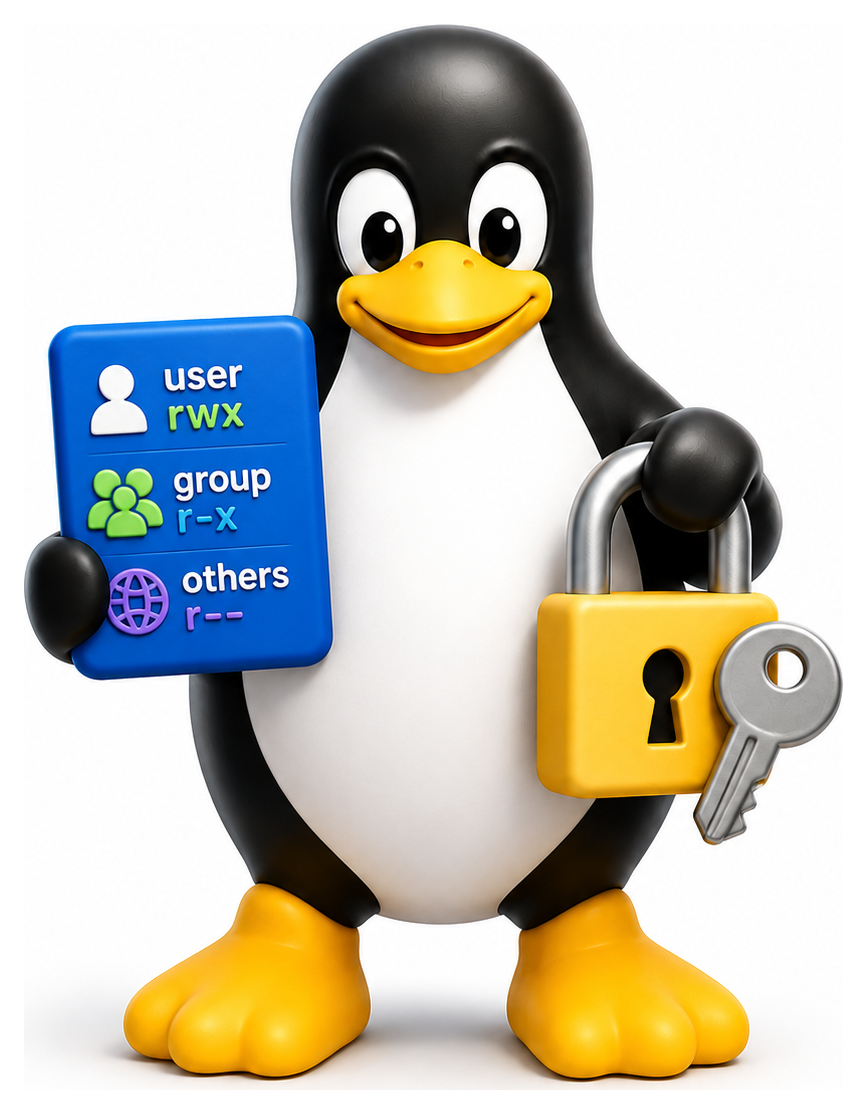
Linux grew up on shared mainframes in the 1970s, where dozens of people logged into the same computer simultaneously and the operating system had to keep them from accidentally (or deliberately) treading on each other. That multi-user DNA is still fundamental to Linux today, even on a single-person laptop. Every file you own, every process you run, every network connection you make is stamped with a user and group identity, and a well-understood permission model decides who can do what. Mastering this system is not optional: it is the foundation of security on every Linux machine.
- Explain how Linux represents users and groups internally and in configuration files
- Read and set file permissions using both symbolic and octal notation
- Apply the setuid, setgid, and sticky bits correctly
- Manage user accounts with the standard administrative tools
- Use sudo to grant fine-grained administrative access
Users Are Numbers
Internally, Linux does not really care about your username. What it cares about is your user ID: a non-negative integer, usually called a UID. The kernel stores UIDs on every file, every process, and every open network socket. Usernames are just human-readable aliases that the system looks up when it needs to print something on your behalf.
You can see your own:
id
# uid=1000(chris) gid=1000(chris) groups=1000(chris),27(sudo),100(users)
whoami
# chris
On a typical desktop Linux system, UIDs are allocated roughly like this:
| UID | Meaning |
|---|---|
| 0 | root, the superuser |
| 1-999 | System accounts (daemons, services) |
| 1000+ | Ordinary user accounts |
| 65534 | nobody, used for unprivileged tasks |
UID 0 is special. The user with UID 0 is the root user, and the kernel grants root nearly every possible permission: reading any file, killing any process, binding to privileged network ports, mounting filesystems, loading kernel modules. Root is omnipotent within the machine. Treating a root shell with appropriate paranoia is one of the hallmarks of a competent sysadmin.
/etc/passwd and /etc/shadow
Users are defined in two files.
/etc/passwd lists every account on the system, one per line:
chris:x:1000:1000:Chris Paton:/home/chris:/bin/bash
The seven colon-separated fields are:
- Username: the human-readable name.
- Password placeholder: historically the hashed password, now always
xto indicate the real hash lives in/etc/shadow. - UID.
- Primary GID: the user's default group.
- GECOS: free-text real name and optional contact info.
- Home directory.
- Login shell.
/etc/passwd is world-readable. This is why the password was moved out of it long ago: any user could have scraped the hashes and tried to crack them offline.
/etc/shadow holds the actual password hashes, and is readable only by root:
chris:$6$abc$def...salted-hash...:19700:0:99999:7:::
The fields record the hashed password, last change date, minimum and maximum age, warning period, inactivity period, expiration date, and a reserved field. Modern Linux hashes passwords with SHA-512 or yescrypt, and includes a per-user salt to prevent rainbow-table attacks.
Table 9.1: /etc/passwd field reference
| # | Field | Example |
|---|---|---|
| 1 | Username | alice |
| 2 | Password marker | x (real hash is in /etc/shadow) |
| 3 | UID | 1000 |
| 4 | GID (primary) | 1000 |
| 5 | GECOS / full name | Alice Liddell,,,, |
| 6 | Home directory | /home/alice |
| 7 | Login shell | /bin/bash |
Groups
A group is a named collection of users that can share access to files. Every user belongs to a primary group (the GID in /etc/passwd) and any number of supplementary groups. Groups are defined in /etc/group:
sudo:x:27:chris,alice
docker:x:999:chris
users:x:100:
A user in the sudo group can use sudo to run commands as root. A user in the docker group can talk to the Docker daemon. A user in the wheel group on Red Hat-family systems has similar sudo privileges. Groups are how you organise access without having to change file ownership.
The Permission Model
Every file on a Linux filesystem carries three sets of permissions, for three categories of users:
- Owner: the user who owns the file (usually the one who created it).
- Group: the file's group.
- Others: everyone else.
Each category can be granted three separate permissions:
- Read (
r): look at the contents. - Write (
w): modify the contents. - Execute (
x): run the file as a program, or, for directories, descend into it.
That gives nine permission bits per file, usually displayed as three groups of three:
ls -l chapter.md
# -rw-r--r-- 1 chris chris 4096 Apr  9 10:00 chapter.md
The permission string -rw-r--r-- reads as: regular file, owner can read and write, group can read, others can read. The first character is the file type (Chapter 6); the next nine are the permissions.
Table 9.2: Permission octal mapping
| Octal | Binary | Symbolic | Means |
|---|---|---|---|
| 0 | 000 | --- | No permission |
| 1 | 001 | --x | Execute only |
| 2 | 010 | -w- | Write only |
| 3 | 011 | -wx | Write + execute |
| 4 | 100 | r-- | Read only |
| 5 | 101 | r-x | Read + execute |
| 6 | 110 | rw- | Read + write |
| 7 | 111 | rwx | Full permissions |
Directory Permissions: A Subtle Twist
For directories, read, write, and execute mean slightly different things:
- Read (r): list the names of files in the directory.
- Write (w): add, remove, or rename files in the directory.
- Execute (x): enter the directory and access files by name.
The execute bit on a directory is the tricky one. Without it, you cannot cd into the directory, cannot open any file inside it, and cannot stat files in it, even if you know their names exactly. Directories almost always need the execute bit.
chmod: Changing Permissions
The chmod command changes permissions. It has two syntaxes.
The symbolic syntax is easier to remember:
chmod u+x script.sh     # add execute for user (owner)
chmod g-w file.txt      # remove write for group
chmod o+r file.txt      # add read for others
chmod a+r file.txt      # add read for all (a = u+g+o)
chmod u=rw,g=r,o= file.txt   # set exactly these permissions
The octal syntax is more concise once you learn it. Each of the three permission triplets corresponds to a three-bit number: r=4, w=2, x=1, added together. So rwx = 7, rw- = 6, r-- = 4, --- = 0.
chmod 755 script.sh     # rwxr-xr-x (owner full, others read+execute)
chmod 644 file.txt      # rw-r--r-- (owner read+write, others read)
chmod 600 secrets.txt   # rw------- (only owner)
chmod 700 ~/.ssh        # rwx------ (only owner, standard for ssh dir)
Pick whichever you prefer (professionals use both), but get comfortable with the octal form because it appears in installation instructions everywhere.
Table 9.3: chmod recipes
| Command | Result |
|---|---|
| chmod 644 file | rw-r--r-- (normal file) |
| chmod 755 file | rwxr-xr-x (script or binary) |
| chmod 700 file | rwx------ (private) |
| chmod 600 file | rw------- (private key) |
| chmod +x file | Make executable for all who can read it |
| chmod u+x,g-w file | Add x for user, remove w for group |
| chmod -R g+r dir | Recursively grant group read |
| chmod 1777 /tmp | Sticky world-writable (the /tmp trick) |
chown and chgrp
To change ownership:
chown alice file.txt           # change owner to alice
chown alice:staff file.txt     # change owner and group
chown -R alice:staff dir/      # recursive
chgrp staff file.txt           # change only the group
Only the root user can change a file's owner. An ordinary user can change a file's group only if they own the file and are a member of the target group.
Special Bits: setuid, setgid, and sticky
Beyond the nine standard bits, Linux has three special permission bits.
Setuid (set user ID, symbolic s in the owner's execute position, octal 4000): when an executable file is run, the process takes on the owner's UID, not the invoker's. This is how passwd lets ordinary users update /etc/shadow: the binary is owned by root and marked setuid, so when you run it, the process temporarily has root power.
ls -l /usr/bin/passwd
# -rwsr-xr-x 1 root root 68208 Apr  9 10:00 /usr/bin/passwd
The s in position 4 is the setuid bit. Setuid binaries are a security-sensitive category because a bug in one of them can become a privilege escalation. Audit them periodically.
Setgid (2000): on an executable, same idea but for the group. On a directory, it has a different and useful meaning: files created inside inherit the directory's group rather than the creator's primary group. This is how shared project directories stay shared.
Sticky bit (1000, symbolic t in the others' execute position): on a directory, it means only the file's owner (or root) can delete files in it, even if other users have write permission on the directory. This is how /tmp works: everyone can create files there, but you cannot delete someone else's.
ls -ld /tmp
# drwxrwxrwt 20 root root 4096 Apr  9 10:00 /tmp
The t at the end is the sticky bit.
Table 9.4: Special permission bits
| Bit | Octal | On File | On Directory |
|---|---|---|---|
| setuid | 4000 | Run as file owner | (ignored on Linux) |
| setgid | 2000 | Run as file's group | New files inherit dir's group |
| sticky | 1000 | (historical: keep text) | Only owner can delete entries (/tmp) |
umask
When a program creates a new file, the initial permissions are determined by a combination of what the program asks for and the umask, a mask that subtracts permissions. A umask of 022 means "remove write from group and others":
umask
# 0022
touch newfile
ls -l newfile
# -rw-r--r-- 1 chris chris 0 Apr  9 10:00 newfile
The default 022 is sensible for desktop use. On multi-user systems where privacy matters, you might set 077 so that new files are private by default.
Table 9.5: Common umask values
| umask | New File | New Directory | Typical Use |
|---|---|---|---|
| 022 | 644 (rw-r--r--) | 755 (rwxr-xr-x) | Default for most users |
| 002 | 664 (rw-rw-r--) | 775 (rwxrwxr-x) | Group collaboration |
| 077 | 600 (rw-------) | 700 (rwx------) | Paranoid / servers |
| 007 | 660 (rw-rw----) | 770 (rwxrwx---) | Private group work |
Creating and Managing Users
The administrative tools for user management:
| Command | Purpose |
|---|---|
useradd alice |
Create a new user |
useradd -m -s /bin/bash alice |
Create with home directory and shell |
passwd alice |
Set (or change) a password |
usermod -aG docker alice |
Add alice to the docker group |
userdel alice |
Delete a user |
userdel -r alice |
Delete a user and their home directory |
groupadd developers |
Create a group |
groupdel developers |
Delete a group |
On Debian-based systems there is also a friendlier wrapper called adduser, which asks interactive questions and handles home directory creation automatically.
sudo: Controlled Privilege
Logging in as root directly is strongly discouraged. It is too easy to make catastrophic mistakes, there is no audit log of who did what, and a captured root session is a full compromise. Instead, ordinary users run privileged commands via sudo:
sudo apt update
sudo systemctl restart nginx
sudo -i                        # interactive root shell (use sparingly)
When you run sudo, the system looks up whether you are allowed to, prompts for your password (not root's), logs the command, and runs it with root privilege. The permissions policy lives in /etc/sudoers, edited only with visudo (which validates the syntax before saving; a botched sudoers file can lock you out of root entirely).
A typical entry:
%sudo ALL=(ALL:ALL) ALL
This says "members of the sudo group may run any command as any user". You can get much more fine-grained (restrict specific commands, disable the password prompt for a whitelist, allow only from specific hosts), and a well-configured sudoers file is the backbone of real-world access control.
Table 9.6: sudo vs su
| Aspect | sudo | su |
|---|---|---|
| Asks for | Your own password | Target user's password |
| Scope | One command (usually) | An entire shell |
| Audit trail | Logged per command | Only the switch is logged |
| Granularity | Fine (sudoers rules) | All-or-nothing |
| Target | Any user (usually root) | Any user (usually root) |
| Environment | Reset by default | Preserved (unless su -) |
Real-World Patterns
A few patterns worth knowing.
Private file. chmod 600 secrets.txt: only you can read or write.
SSH private key. chmod 600 ~/.ssh/id_ed25519: many SSH clients refuse to use a key that is readable by anyone else.
Shared project directory. chmod 2775 /srv/project; chgrp developers /srv/project: setgid directory, members of developers can add files, everyone else can read.
Web server document root. chmod 755 /var/www/html: world-readable, but only the owner can change files.
Permissions are simple in principle, subtle in the details, and utterly fundamental. When something "doesn't work" on Linux, the answer is "permissions" about a third of the time. Learn to read ls -l output fluently, and half the puzzle is already solved.
