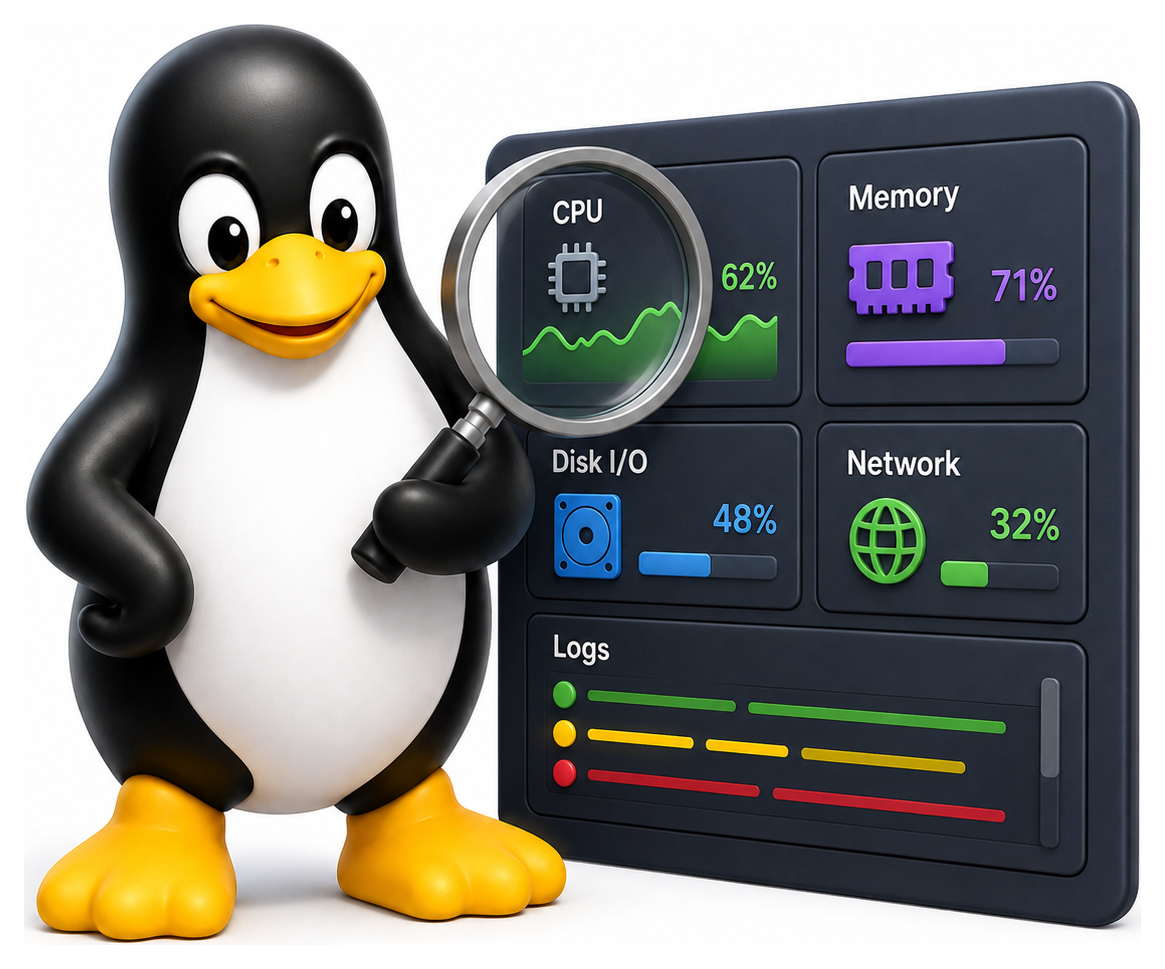
When a Linux system is behaving strangely (slow, unresponsive, thrashing, mysteriously using all the memory, dropping network packets), the question is never whether you can figure out what is wrong. Linux exposes almost everything it is doing through files, counters, and tracing interfaces. The question is whether you know where to look. This chapter is a tour of the most valuable tools for measuring, tracing, and understanding a running Linux system. Developing the reflex to reach for them when things misbehave is one of the differences between a user and an engineer.
- Interpret load averages and the output of common system monitoring tools
- Use vmstat, iostat, and sar to diagnose CPU, memory, and disk issues
- Trace system calls and library calls with strace and ltrace
- Read kernel and service logs effectively
- Describe the role of modern observability tools such as perf and eBPF
Load Average: The Thirty-Second Overview
The simplest summary of a machine's busyness is the load average, a set of three numbers shown by uptime, top, and w:
uptime
# 15:32:41 up 3 days, 4:18, 2 users, load average: 0.48, 0.42, 0.39
The three numbers are the average number of processes "in the run queue or waiting for I/O" over the past 1, 5, and 15 minutes. On a system with a single CPU, a load of 1.0 means the CPU was fully utilised with exactly one runnable process on average. A load of 2.0 means there was always one running plus another waiting in line. On a four-core machine, loads up to 4.0 are fine (each core can handle one), and anything above that means contention.
Load average is a blunt instrument. It conflates CPU-bound and I/O-bound processes (a machine stuck waiting on a broken NFS server will show a huge load), and it is slow to react to sudden changes. But it is the first number to look at when someone says "the server is slow", because it tells you immediately whether to look at CPU, I/O, or something else entirely.
top and htop: The Live Dashboard
top shows a constantly-updating list of processes sorted by CPU usage. We met it in Chapter 10, but in the context of performance it has a few more tricks:
- Press
1to show per-CPU usage instead of an aggregate. - Press
Mto sort by memory instead of CPU. - Press
Pto sort by CPU (the default). - Press
cto show full command lines instead of just program names.
The header summarises global state:
top - 15:34:02 up 3 days, ... load average: 0.48, 0.42, 0.39
Tasks: 281 total, 1 running, 280 sleeping
%Cpu(s): 4.3 us, 1.2 sy, 0.0 ni, 94.1 id, 0.4 wa, 0.0 hi, 0.0 si
MiB Mem : 16032.0 total, 1847.2 free, 7523.8 used, 6660.9 buff/cache
MiB Swap: 2048.0 total, 2048.0 free, 0.0 used.
The CPU breakdown is worth knowing.
A high wa means the CPU is often idle because processes are blocked on disk or network I/O; investigate with iostat. A high sy suggests the kernel itself is busy; common on machines with very many small system calls. A high st on a virtual machine means the host is oversubscribed.
htop is the friendlier colourful replacement for top. Use it by default on any machine where you have root to install it.
Table 19.1: top/htop column reference
| Column | Meaning |
|---|---|
| PID | Process ID |
| USER | Owning user |
| PR / NI | Priority / nice value |
| VIRT | Virtual memory size |
| RES | Resident (physical) memory |
| SHR | Shared memory |
| S | State (R/S/D/Z/T) |
| %CPU | CPU percent (100% = one core fully used) |
| %MEM | Percent of RAM used |
| TIME+ | Cumulative CPU time |
Memory: free, vmstat, /proc/meminfo
Linux memory management confuses newcomers because "free memory" is almost always a small number, even on an idle system. That is because Linux aggressively caches disk blocks in any memory not currently used by processes. This is not waste; the cache is returned to any process that needs RAM. But it makes free output look alarming if you misread it.
free -h
#                total   used   free  shared  buff/cache   available
# Mem:            16Gi  7.7Gi  1.8Gi   420Mi       6.5Gi        8.4Gi
# Swap:          2.0Gi     0B  2.0Gi
The column to watch is available, which shows how much memory could be given to a new process if it asked, including cache that would be reclaimed on demand. If available is low, you are genuinely low on RAM.
vmstat gives a live stream of memory, I/O, and CPU statistics:
vmstat 2
# procs -----------memory---------- ---swap-- -----io---- -system-- ------cpu-----
#  r  b   swpd   free   buff  cache   si   so    bi    bo   in   cs us sy id wa st
#  1  0      0 1890000 52000 6720000  0    0    14    28  324  832  4  1 94  1  0
The 2 means "print a new line every two seconds". The columns under -cpu- are the same as in top. The r column is the run queue length, a useful proxy for CPU contention that the load average summarises more crudely. The si/so columns are swap-in/swap-out rates; if either is non-zero, you are running out of memory.
For a detailed memory picture, read /proc/meminfo:
cat /proc/meminfo | head
# MemTotal:       16416936 kB
# MemFree:         1896544 kB
# MemAvailable:    8626100 kB
# Buffers:           53244 kB
# Cached:          6723828 kB
# SwapCached:            0 kB
# Active:          8342812 kB
# Inactive:        4928216 kB
Buffers are kernel I/O buffers; cache is page cache. Active and inactive are the two LRU lists the kernel uses to decide what to reclaim under pressure.
Table 19.2: Key /proc/meminfo fields
| Field | Meaning |
|---|---|
| MemTotal | Total usable RAM |
| MemFree | Completely unused RAM |
| MemAvailable | RAM available without swapping (use this one!) |
| Buffers | Filesystem metadata cache |
| Cached | Page cache of file contents |
| SwapTotal / SwapFree | Swap space stats |
| Dirty | Memory waiting to be written to disk |
| Writeback | Memory actively being written to disk |
| Slab | Kernel data structure cache |
| Shmem | Shared memory (tmpfs etc.) |
| AnonPages | Program memory (not backed by file) |
| HugePages_Total | Pre-allocated huge pages |
Disk I/O: iostat
iostat (from the sysstat package) shows per-device disk statistics:
iostat -xz 2
# Device    r/s   w/s   rkB/s  wkB/s  rrqm/s  wrqm/s  %util
# sda       0.2   4.5     2.4   87.1    0.0     1.1    0.8
# nvme0n1   1.1  23.4    44.1  512.0    0.0     6.3    3.2
The key columns: r/s and w/s are reads and writes per second; rkB/s and wkB/s are data rates; %util is the percentage of time the device had at least one request in flight. On a single spinning disk, which serves one request at a time, that is a fair proxy for saturation. On an SSD or a RAID array it is not: those devices serve many requests at once, so %util can sit at 100% while the device is nowhere near its limit. Read it alongside aqu-sz, the average queue size, and the r_await and w_await latency columns, which tell you whether requests are actually waiting.
The -x flag gives extended statistics; -z suppresses devices with no activity.
sar: The Historical Record
vmstat and iostat give you live data. sar (System Activity Reporter) records data continuously in the background and lets you query history:
sar -u                # CPU history for today
sar -u -f /var/log/sa/sa09    # for day 9
sar -r                # memory
sar -d                # disk
sar -n DEV            # network
sar is invaluable when a user says "the server was slow at 2am last night" and you want to look back at what was happening. Enable the collector with sudo systemctl enable --now sysstat (the service name varies slightly between distributions).
Tracing: strace and ltrace
When a specific program is misbehaving, the question becomes: what is it actually doing? The answer is usually available through strace, which traces every system call a process makes.
strace ls /tmp
# execve("/usr/bin/ls", ["ls", "/tmp"], 0x7ffd5c0b9768) = 0
# brk(NULL)                               = 0x55a9f0a2c000
# openat(AT_FDCWD, "/etc/ld.so.cache", O_RDONLY|O_CLOEXEC) = 3
# ...
Extraordinarily verbose, but extraordinarily informative. You can filter to reduce the noise:
strace -e openat,read,write ls /tmp    # only these syscalls
strace -p 12345                         # attach to a running process
strace -c ls /tmp                       # summary counts instead of full trace
strace -f ./complicated-script.sh       # follow forks
When a program hangs, attaching with strace -p will usually show it blocked in a single system call (often read or futex), which tells you exactly what it is waiting for.
ltrace does the same job for library function calls instead of system calls. It is less universally useful than strace but sometimes reveals things strace cannot, because many interesting operations (memory allocations, string comparisons) happen entirely in user space.
Table 19.3: Tracing and profiling tools
| Tool | What It Traces | Overhead |
|---|---|---|
| strace | System calls | Very high (ptrace) |
| ltrace | Library calls | Very high |
| perf | Hardware counters, kernel/user stacks | Low |
| ftrace | Kernel function entries/exits | Low (built in) |
| bpftrace | Any kernel/user event (eBPF) | Very low |
| bcc tools | Scripted eBPF (opensnoop, execsnoop...) | Very low |
| SystemTap | Kernel probes (legacy) | Medium |
dmesg and the Kernel Ring Buffer
The kernel maintains a ring buffer of messages, visible with dmesg. This is where you look for hardware errors, driver problems, out-of-memory events, and kernel warnings.
dmesg -T | tail        # recent messages with human-readable timestamps
dmesg -w               # watch new messages as they arrive
dmesg | grep -i error
Some of the most useful things to search for:
Out of memory: Killed process: the OOM killer claimed a victim.I/O error: a disk is failing.link is Down/link is Up: network cable or switch flapping.segfault: a user program crashed with a bad memory access.
journalctl: System-wide Logs
We met journalctl in Chapter 13. For performance work, a few invocations are particularly handy:
journalctl -p err -b             # errors since last boot
journalctl --since "1 hour ago"  # recent messages
journalctl -u nginx -p err       # errors from a specific service
journalctl -k                    # kernel messages only
perf: The Profiler
When you need to know where a CPU-bound program is spending its time, reach for perf. It samples the CPU at high frequency and builds a profile of which functions are running.
sudo perf top                           # live, top-like view
sudo perf record -g ./myprog            # profile a single run
sudo perf report                        # interactive browser
sudo perf stat ./myprog                 # summary counters
perf uses CPU performance monitoring counters, exposed by the kernel. It gives you cycles, cache misses, branch mispredictions, and many more metrics that let you optimise code at the micro level. Brendan Gregg's website (brendangregg.com) is the go-to resource for serious perf use, including the famous flame graphs that visualise call stacks as a wide tree.
eBPF: The Modern Frontier
The last decade's great advance in Linux observability is eBPF: extended Berkeley Packet Filter. Despite its name, eBPF is no longer just about packets. It is a general-purpose in-kernel virtual machine that lets you safely run small programs at strategic points in the kernel, gathering data with minimal overhead.
Tools built on eBPF can answer questions that used to require recompiling the kernel or running expensive tracers:
- Which processes are issuing the most file-system operations?
- Which network connections are experiencing the most TCP retransmissions?
- How long does each system call take, on average, for this service?
- Show me all
writecalls greater than 1 MB.
The bcc and bpftrace tool collections wrap eBPF in user-friendly commands:
sudo bpftrace -e 'tracepoint:syscalls:sys_enter_openat { @[comm] = count(); }'
# Ctrl+C to see a count of openat calls grouped by program name
eBPF is a deep subject and a rapidly evolving one. But even casual familiarity with tools like opensnoop (watch file opens), execsnoop (watch process exec calls), and tcplife (log TCP connection lifetimes) gives you superpowers that were unavailable to previous generations of Unix administrators.
Prometheus and Grafana: Long-Term Metrics
Everything in this chapter so far has been ad hoc: you run a tool, it prints a snapshot, you read it and move on. That is how you diagnose an incident that is happening right now. But serious operations teams also want the opposite: continuous metrics collected over weeks or months, so you can ask questions like "has memory usage been creeping up since we deployed that service?" or "show me the 99th-percentile request latency for the last thirty days". The tool most modern Linux shops reach for is Prometheus, paired with Grafana for visualisation.
Prometheus is a time-series database and scraper, originally developed at SoundCloud and now the flagship project of the Cloud Native Computing Foundation. It periodically pulls metrics from configured endpoints (each service exposes /metrics in a simple text format) and stores them for later querying with PromQL, its query language. To get host-level metrics (CPU, memory, disk, network), you run node_exporter on each machine, and Prometheus scrapes it. To monitor applications, you either use a client library to expose metrics from your own code, or run one of the many pre-built exporters (for Nginx, PostgreSQL, Redis, and hundreds of others).
Grafana sits on top of Prometheus (and many other data sources) and provides dashboards: real-time graphs, heatmaps, and alerts, all configurable from a web UI. The combination of node_exporter plus Prometheus plus a few well-chosen Grafana dashboards gives you a production-grade monitoring stack that you can stand up in an afternoon. It will not help you in the middle of an incident the way top and iostat do, but when the incident is over and you want to understand what happened, having a month of historical data is the difference between an educated guess and a confident answer.
For smaller setups, Netdata is a lighter alternative that runs as a single daemon per host and exposes a rich real-time web dashboard out of the box, with no external database or configuration required.
A Performance Investigation Template
When a machine is misbehaving and you do not know why, a systematic first pass looks like this:
uptime: how is the load?toporhtop: which processes are hot? Which states?vmstat 2: CPU, memory, and I/O at a glance, over a few seconds.free -h: is memory available?iostat -xz 2: are any disks saturated?ss -s: summary of socket counts.dmesg -T | tail: any recent kernel noise?journalctl -p err -b: any recent errors?
Each step eliminates a category of problems and points you toward the next investigation. After a few real incidents, this sequence becomes reflexive, and the phrase "the server is slow" stops being terrifying.
Linux gives you extraordinary visibility into its own workings. The only cost is learning the vocabulary of the tools that expose it. Make friends with them before you need them, and you will always know what your machine is doing.
Table 19.4: Performance tools by layer
| Layer | Quick Look | Deeper Dive |
|---|---|---|
| Overview | uptime, top, htop | glances, atop |
| CPU | mpstat, pidstat | perf, bpftrace |
| Memory | free, vmstat | /proc/meminfo, smem, slabtop |
| Disk I/O | iostat, iotop | blktrace, biolatency (bcc) |
| Network | ss, nicstat, iftop | tcpdump, wireshark, tcplife (bcc) |
| Filesystem | df, du | fatrace, filetop (bcc) |
| Processes | ps, pidstat | strace, ltrace |
| Kernel events | dmesg | ftrace, perf, eBPF |
| History | sar | Prometheus + node_exporter |
Table 19.5: The USE method (Brendan Gregg)
| Metric | Definition | Bad Sign |
|---|---|---|
| Utilization | % of time resource was busy | > 70% sustained |
| Saturation | Queue / backlog on resource | Non-zero run queue, iowait |
| Errors | Error count for the resource | Any (usually) |
